

Before You Start
- Project Management is available on the Grow plan.
- Admin or Owner permissions are required to configure templates and milestone statuses.
Projects in Pipeline CRM follow a simple three-level hierarchy:
- Project — the top-level container with an Open or Closed status
- Milestones — phases within a project, each with a customizable status (e.g., Not Started, In Progress, Blocked, Done)
- Tasks — individual work items that live inside a milestone
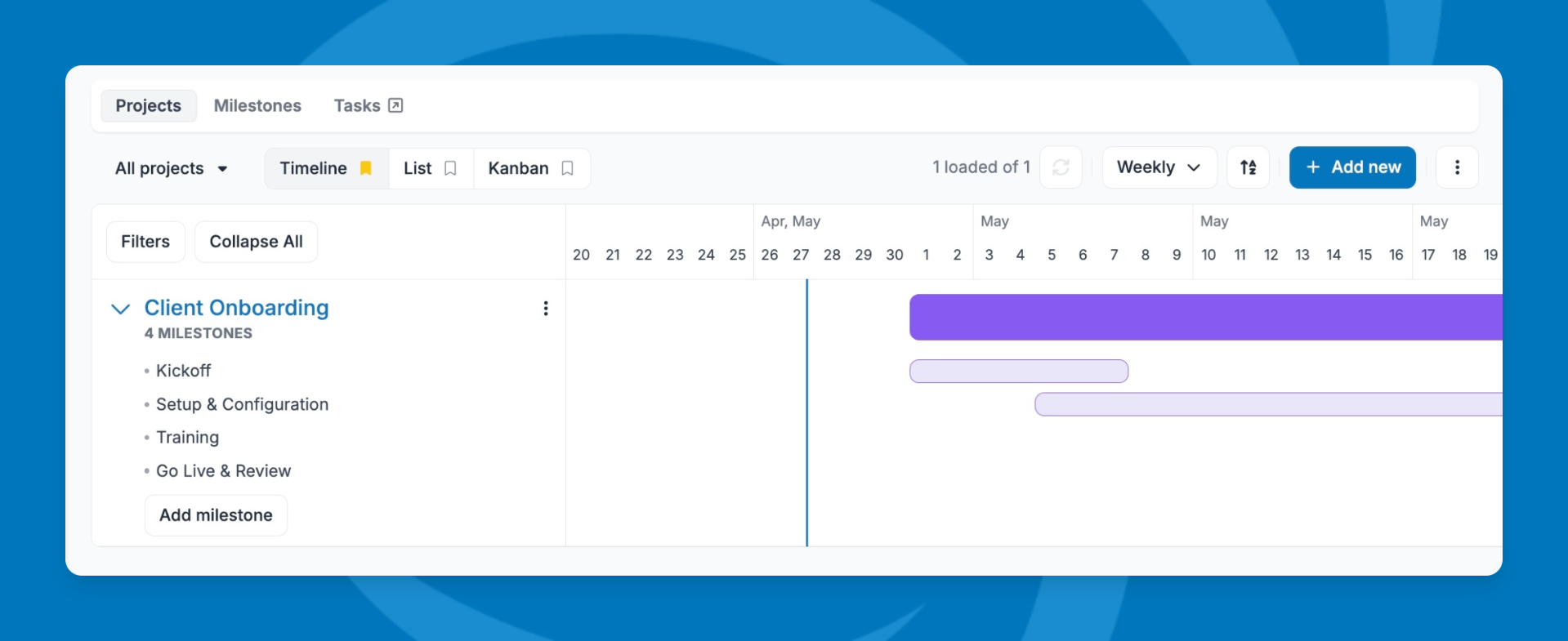
Create a Project
- Click Projects in the left navigation.
- Click + New Project in the top-right corner.
- Enter a Project Name.
- (Optional) Select a Template to pre-populate milestones and tasks.
- Set a Start Date and End Date.
- Add any linked Deals, People, or Companies.
- Click Save.
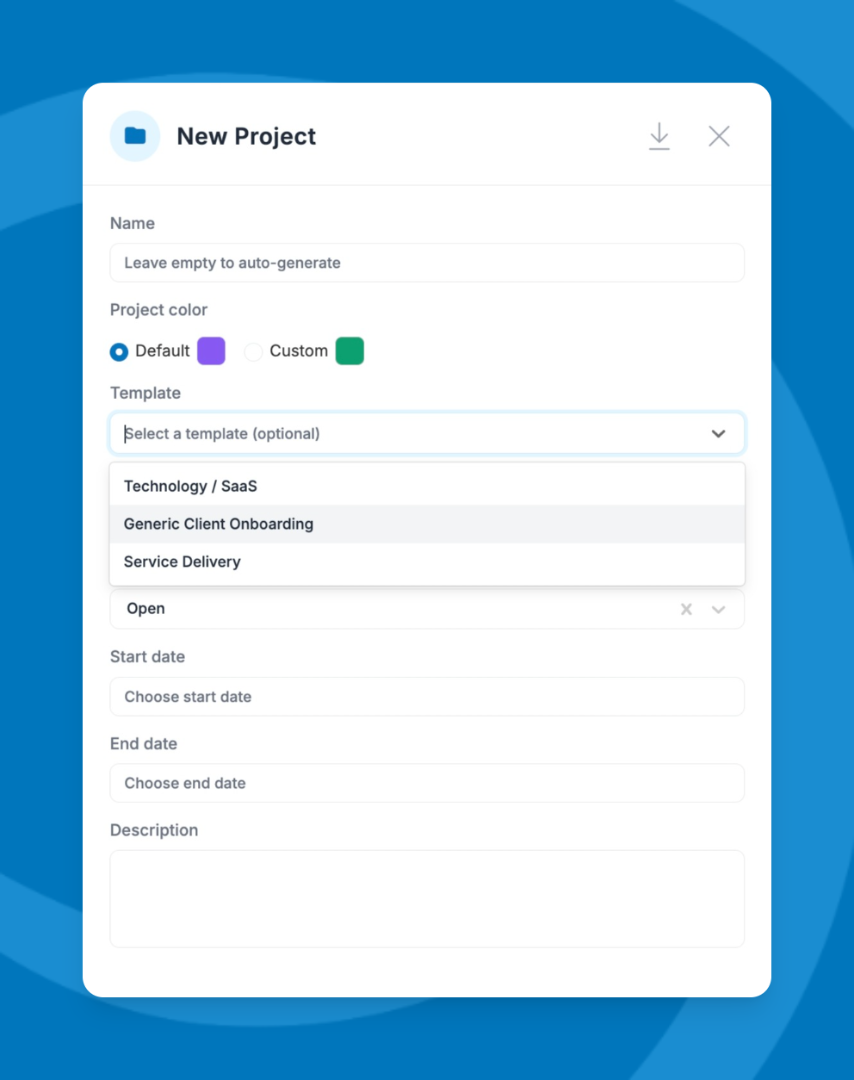
Things to Note:
- Templates can only be applied when creating a new project — they cannot be applied to an existing one.
- Your account can have up to 100 active projects on the Grow plan.
- Once your project is created, open it and go to the Project Overview tile.
- Click the + icon to add a new milestone.
- Enter a milestone name, start and end dates, and status.
- Inside the milestone, click + Add Task to add tasks.
- For each task, set a name, due date, type, priority, and owner.
Choose a View
Projects can be viewed four ways. Use whichever fits your workflow best:
- Timeline — visualize projects and milestones on a time-based layout; drag to adjust dates directly on the canvas.
- List — see all projects in a sortable, filterable table.
- Kanban — view projects by status; drag cards to move between Open and Closed.
- Milestones / Tasks tabs — view all milestones or tasks across projects in one place.
Collaborate with Your Team
Add internal users or external guests as collaborators from the project profile page.
Collaborators have access to the entire project. External (guest) users have read-only access — they can view the project and add activity notes, but cannot edit milestones or tasks.
Learn more about the project profile page here..
Configure Your Workspace
Before rolling out projects to your team, you may want to set up a few things in Settings >
Projects:
- Milestone Statuses — add, rename, or color-code statuses to match your workflow.
- Project Templates — build reusable templates with pre-set milestones, tasks, and collaborator rules.
- Custom Fields — add project-level custom fields at Settings > Data Entry > Custom Fields.
- Navigate Project Views
- Manage Your Project from the Project Profile Page
- Create and Manage Project Templates
- Customize Milestone Statuses for Projects
If you used the old Milestones feature for Companies, those milestones have been automatically migrated into the new Projects module — nothing was lost.
Need help? Contact support at [email protected].