
Before you start:
- Project Management is available on the Grow plan.
- Admin permissions may be required to manage project templates.
- Templates can only be applied when creating a new project. You cannot apply a template to an existing project.
Access Project Templates
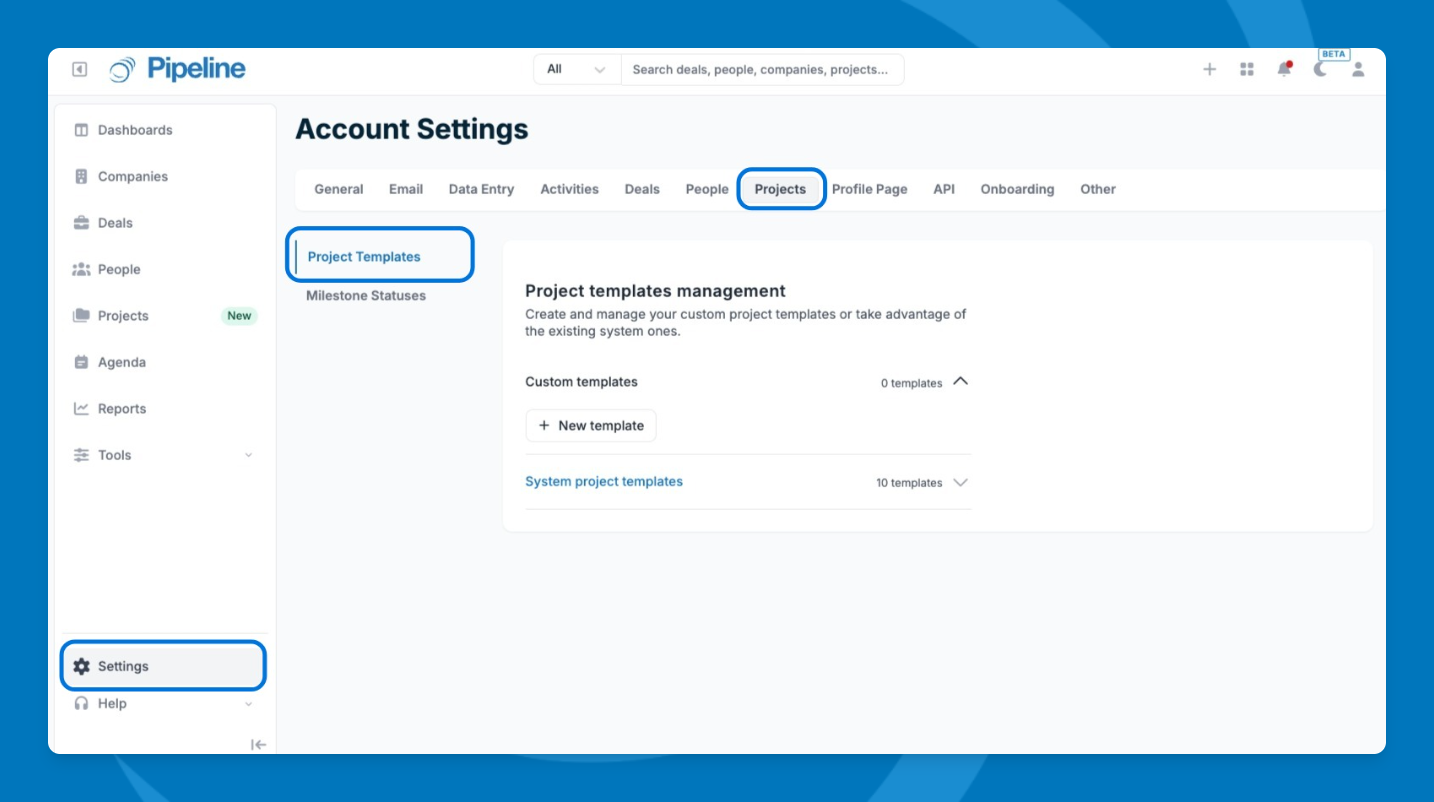
- Go to Settings in the lower-left corner.
- Click the Projects tab.
- Click Project Templates.
Use a System Template
⚠️ Note: System templates cannot be edited. To customize one, clone it first — your copy can be fully edited and saved as a new template.
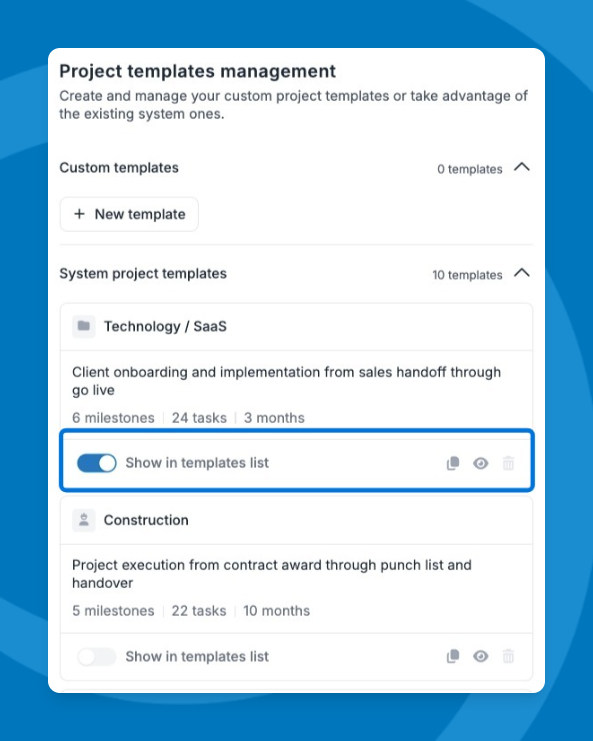
- Browse the list of system templates (e.g., Technology, Construction, Manufacturing).
- Toggle On to show on the templates list when creating a project.
- Click the eye icon on any template to preview its milestones, tasks, and end date settings.
- Click the duplicate icon on any system template to create an editable copy.
Create or Edit a Custom Template
- Click + New Template to create one from scratch, or duplicate an existing template.
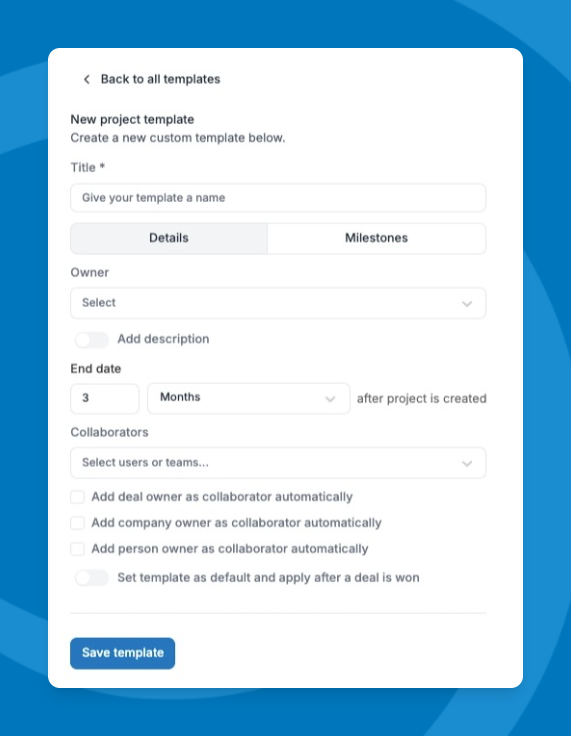
- Enter a Title for the template.
- Fill in the Details section:
- Assign an Owner
- (Optional) Add a Description.
- Set the End Date by selecting Days, Weeks, or Months and entering a value.
- Add Collaborators: Teams or specific users.
- Auto-add record owners as collaborators — enable this to automatically add the owners of any linked deal, company, or person record as collaborators on the project.
- Toggle Set as Default if you want this template to be the default for new projects after a deal is won.
- Fill in the Milestones section:
- Click + Add Milestone.
- Enter a Milestone Title.
- Set the Due Date — enter a value, then choose Days, Weeks, or Months.
- Select a Status for the milestone.
- (Optional) Add tasks to the milestone by clicking + Add Task, then fill in the task name, due date, type, priority, and owner.
- Save Template.