

What you'll see at the top
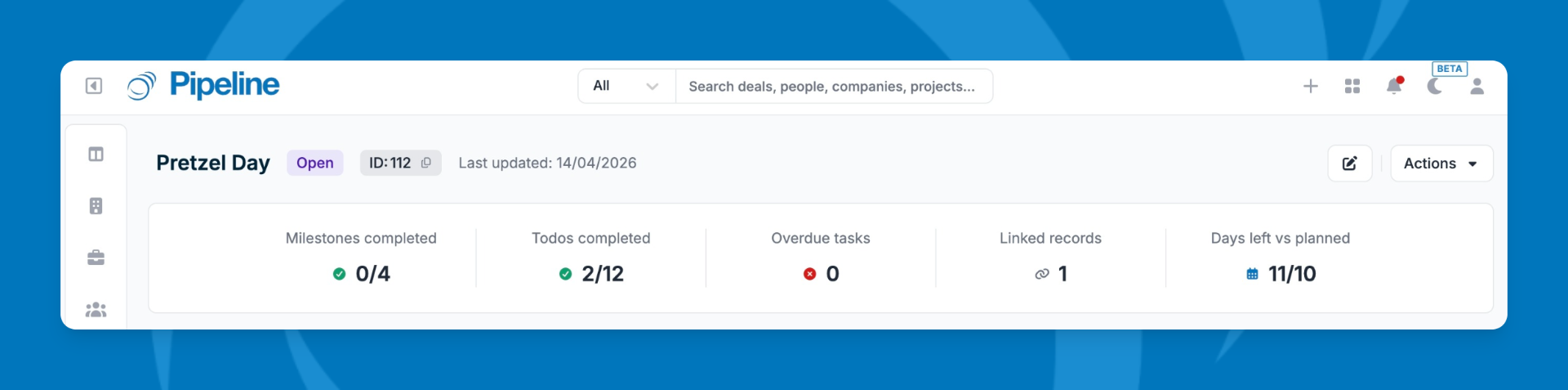
The top of the project profile shows a summary row with key stats at a glance:
- Milestones completed — milestones finished out of the total
- Todos completed — tasks completed across all milestones
- Overdue tasks — tasks past their due date
- Linked records — number of deals, people, or companies linked to the project
- Days left / Days planned — days remaining until the end date vs. the total duration of the project (start to end date)
Project Overview
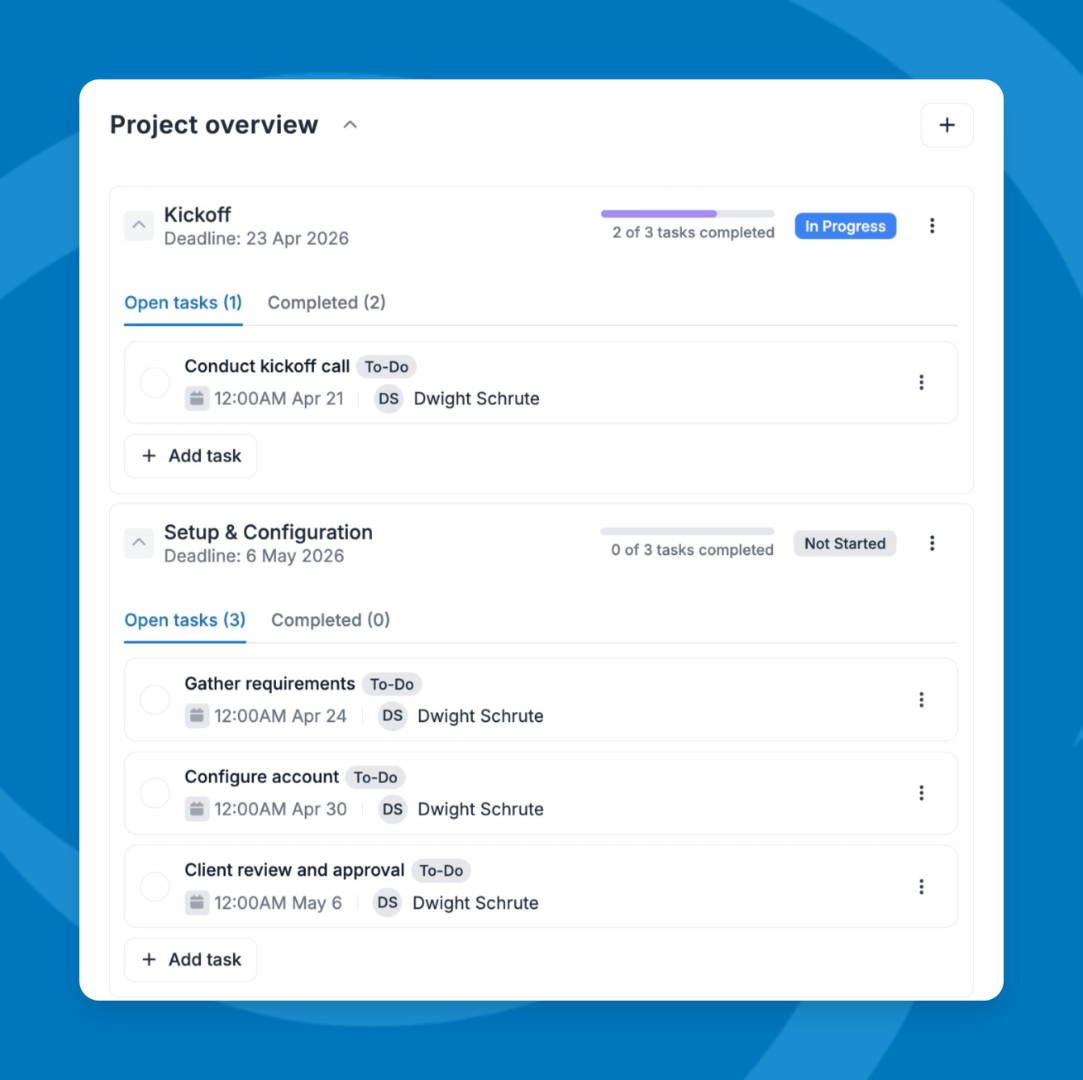
The Project Overview tile is where you manage milestones and tasks.
Viewing milestones and tasks
- Click a milestone to expand it and view its tasks.
- Toggle between Open and Completed tabs to filter tasks within each milestone.
Managing tasks
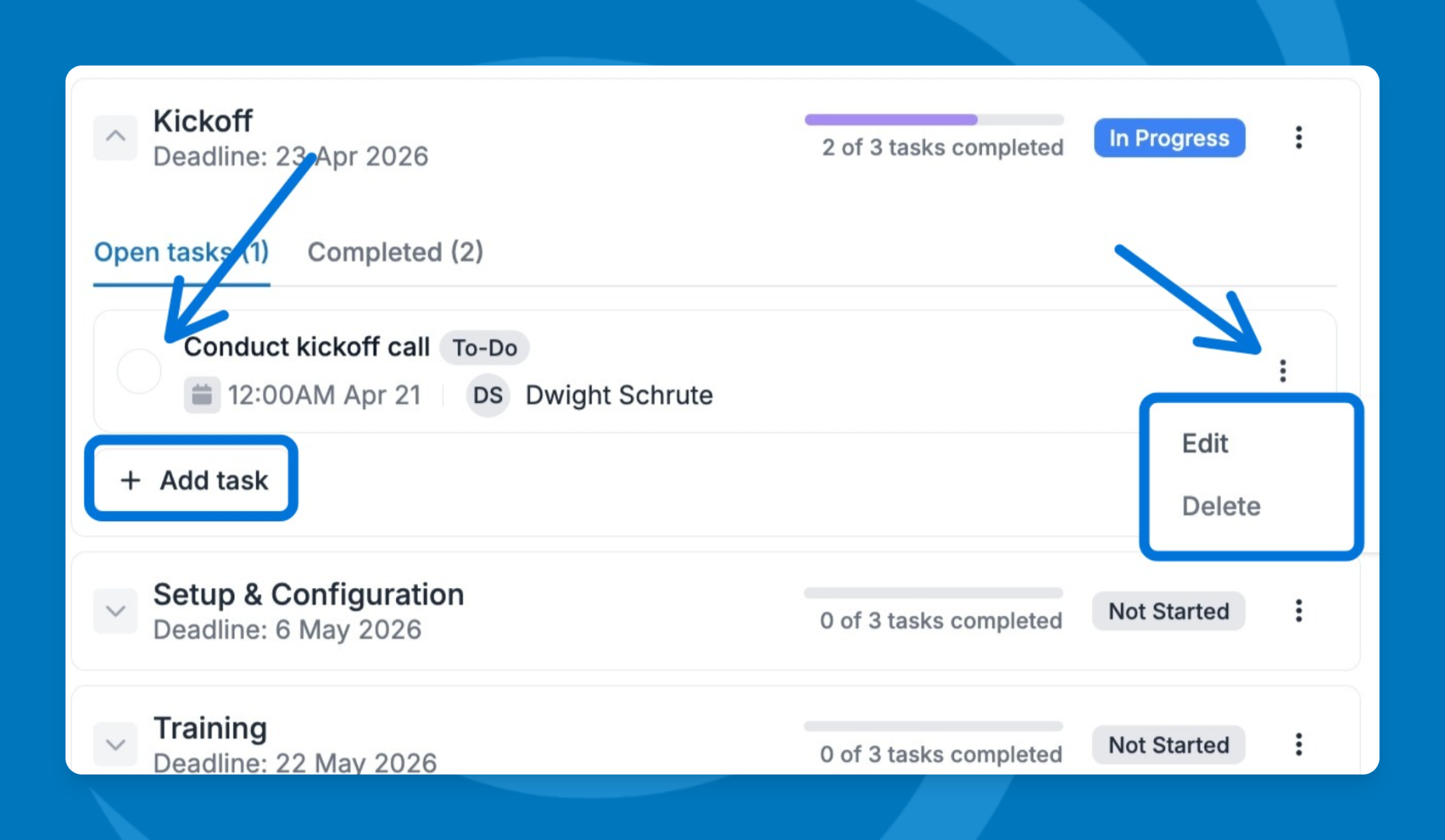
- Check the box next to a task to mark it complete.
- Click the three-dot menu on any task to Edit or Delete it.
- Click the + Add task button to add new tasks to the milestone.
Creating a new milestone
- Click the + icon in the Project Overview tile to add a new milestone.
- Fill in the milestone name, start and end dates, status, tasks, and events.
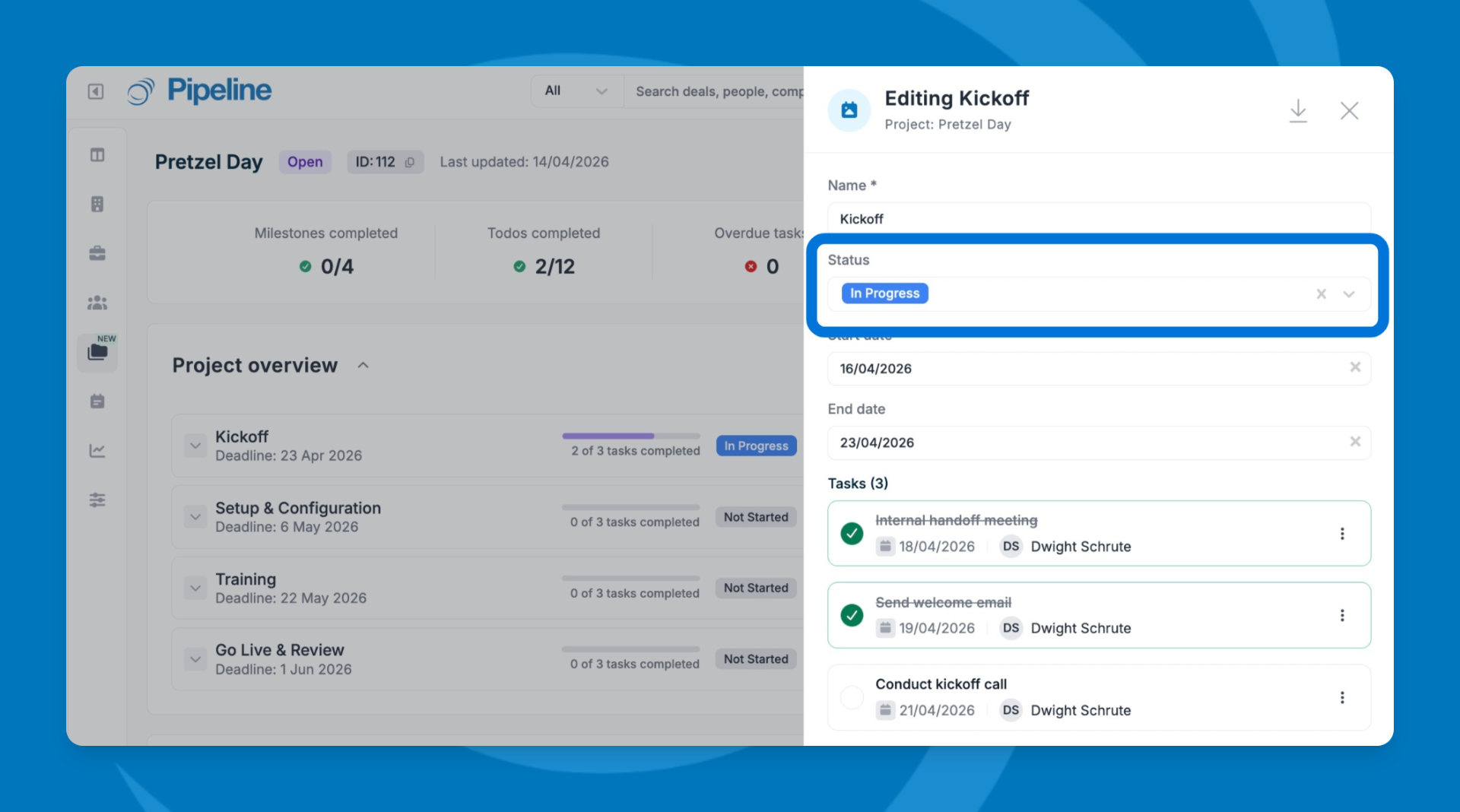
- Click the three-dot menu on the milestone, select Edit, and update the status field.
Collaborators
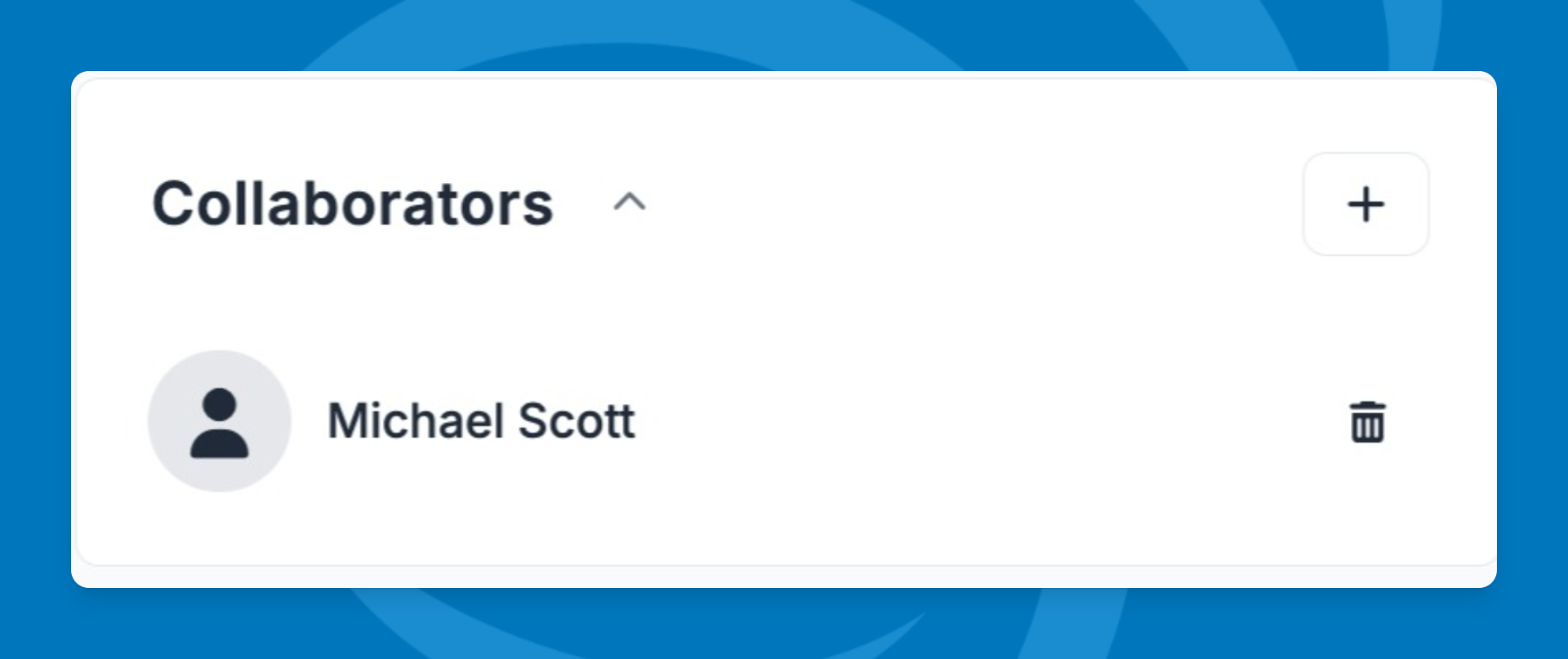
- Click the + icon to add collaborators.
- Click the trash icon to remove collaborators.
- Choose to add individual users or entire teams.
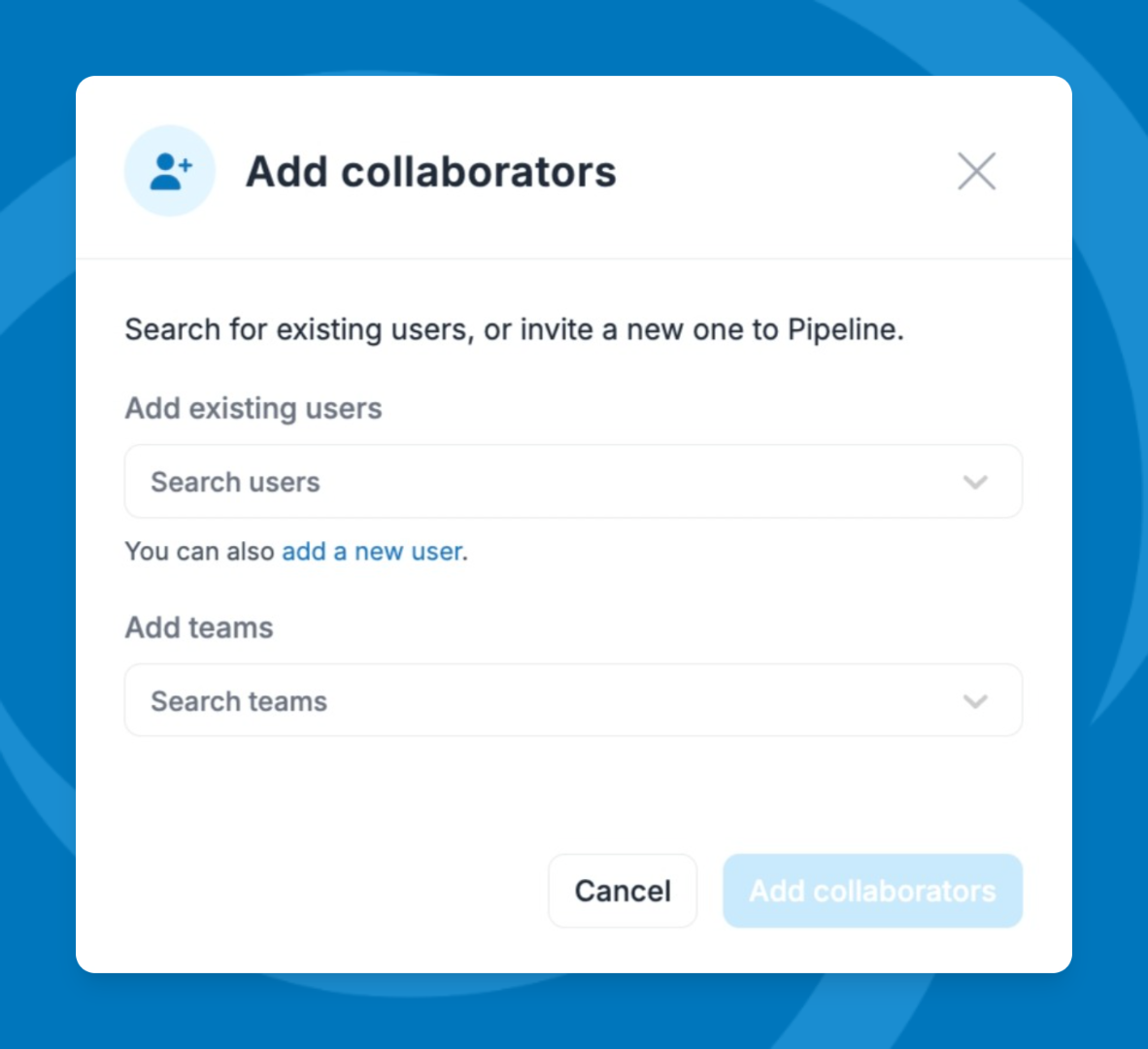
Things to note:
- Collaborators have access to the entire project.
- External users added as collaborators have read-only access to the project. They can add activity notes and tag collaborators — but they cannot edit milestones, tasks, or any other project details.
The Linked tile allows you to see all deals, people, and companies connected to this project.
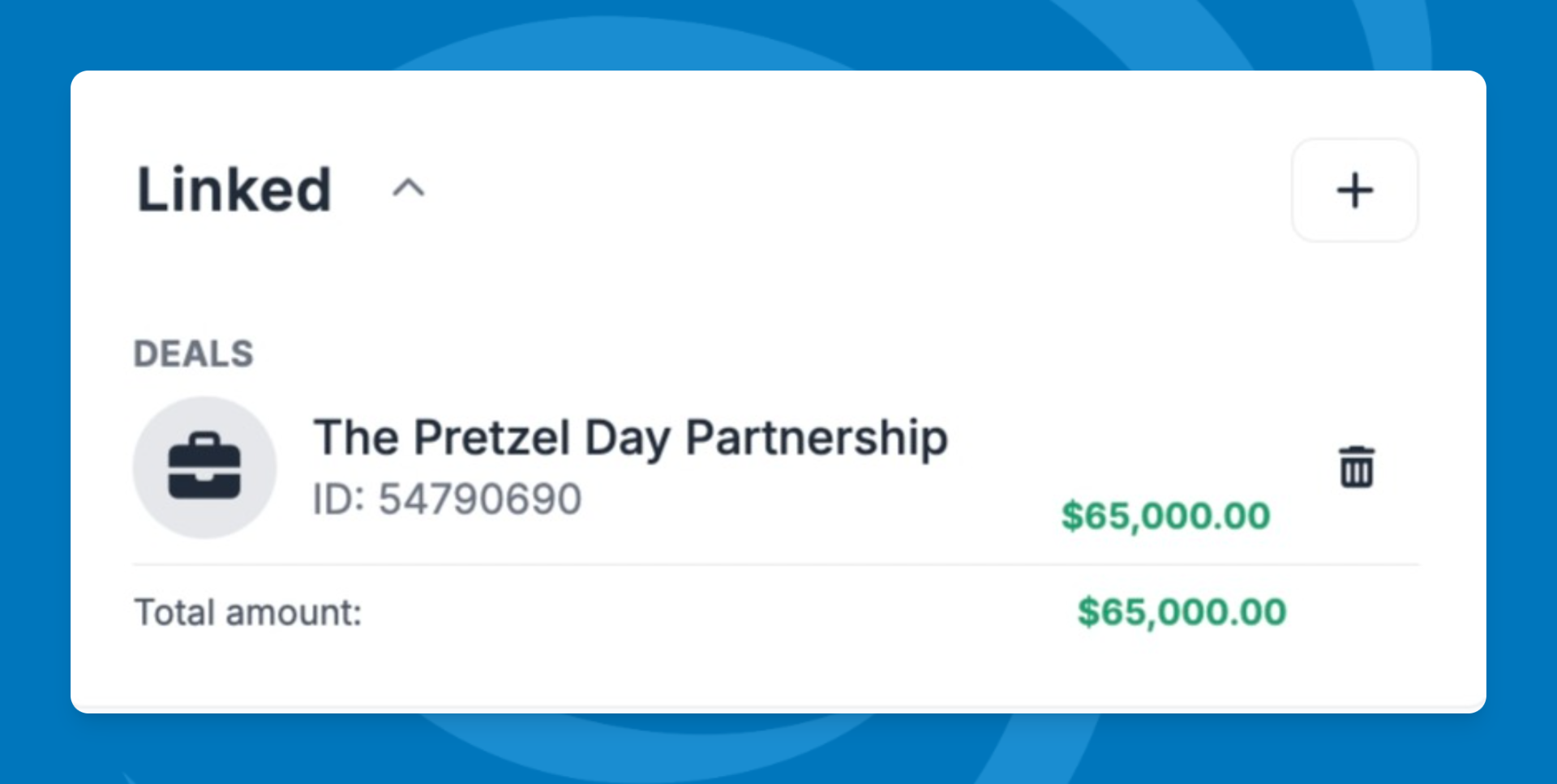
Click the + icon in the Linked tile to attach additional deals, people, or companies.
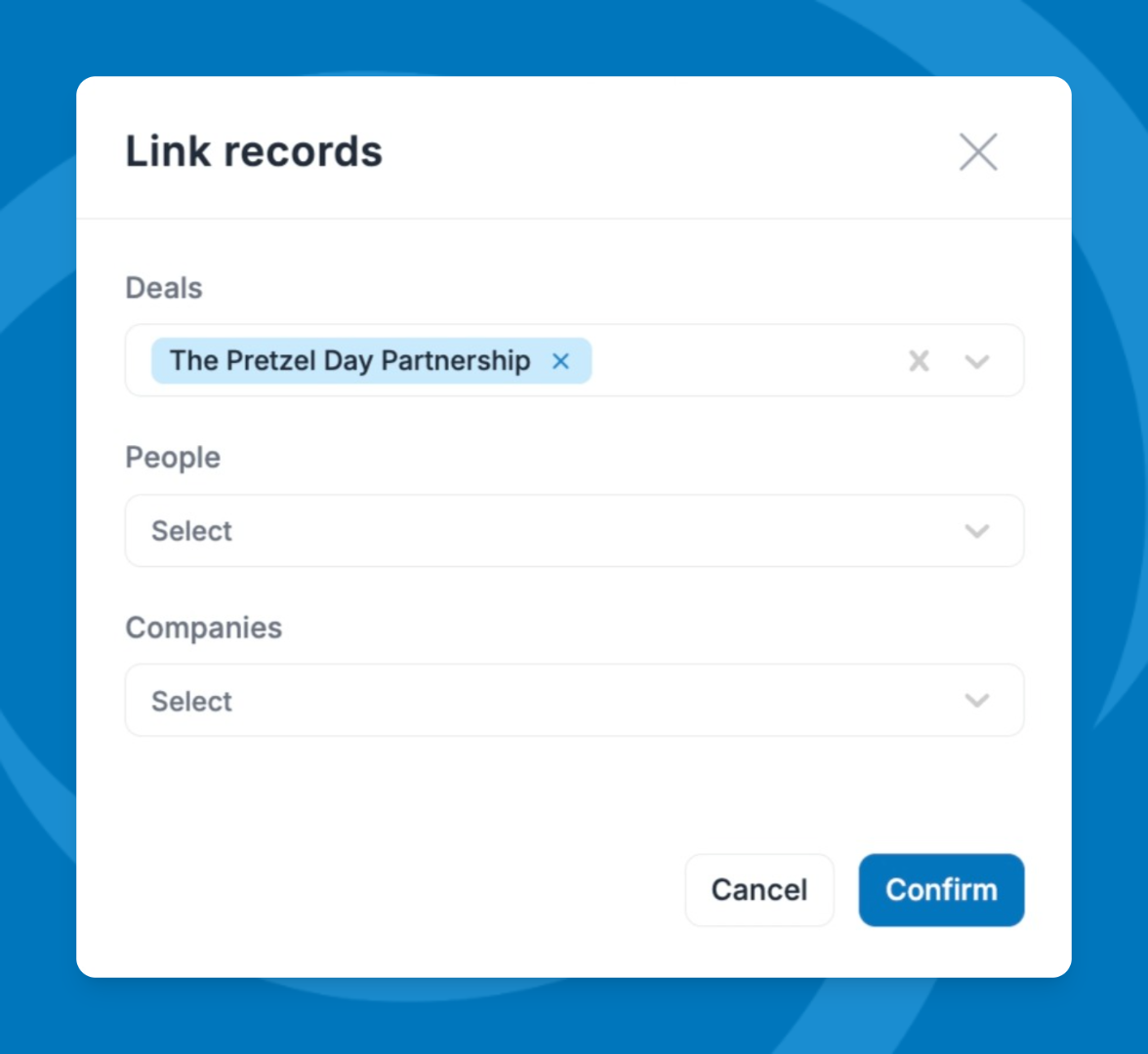
⚠️ Note: When you link a record, a Linked Projects tile automatically appears on that record’s profile page — so anyone viewing the record can see which project it belongs to.
Activity Feed
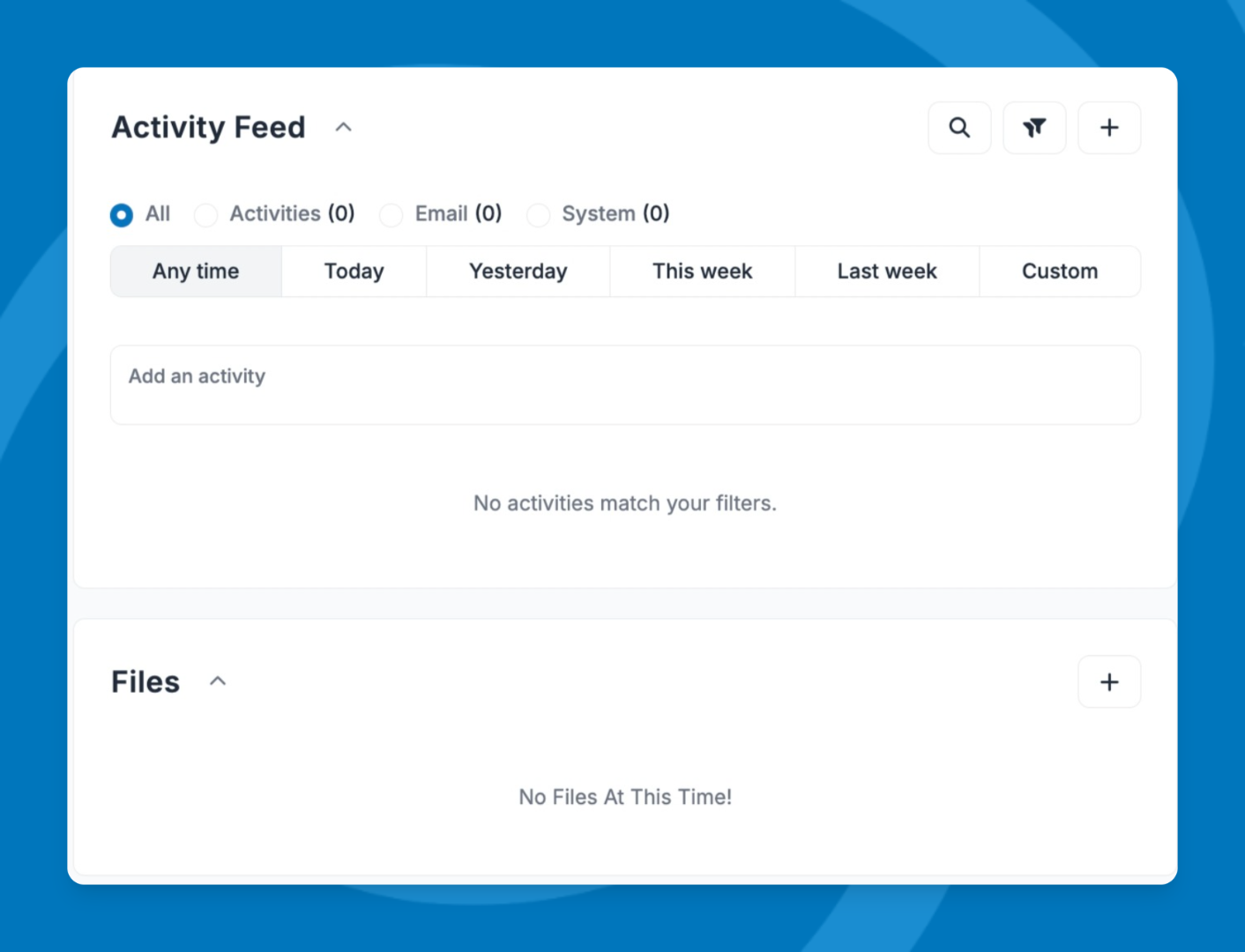
The Activity Feed tile displays a running log of everything that happens in a project — notes, emails, status changes, and more.
What auto-populates in the feed
A Projects system activity category appears alongside the existing categories (Email, Calls, Meetings, etc.). The following events generate an entry automatically:
Project field changes
Status, owner, start date, or end date changed
Linked records, collaborators, milestones and files
- Any record linked or unlinked (deal, company, or person)
- Any collaborator or team added or removed
- Any milestone created, renamed, rescheduled, completed, or deleted
- Any file uploaded or deleted
Calendar event or task completed (when associated with the project)
Emails
Emails from linked contacts, deals, and companies surface automatically. Each row shows which linked record the email came from.
How email activity works
- Only emails sent or received after the project was created are eligible to appear in the feed.
- Older email history stays on the source record (deal, contact, or company).
- Once a project is marked complete, no new emails are added to the feed.
💡 Tip: Only events from the release date forward appear in the feed. Historical events are not backfilled.
Files
The Files tile lets you attach, view, and manage files associated with the project. To learn more about uploading and organizing files, see [Files].
View and customize custom fields
Custom fields for the project appear at the bottom of the profile page.
💡 Tip: To add or modify project custom fields, go to Settings > Data Entry > Custom Fields.
Edit project details
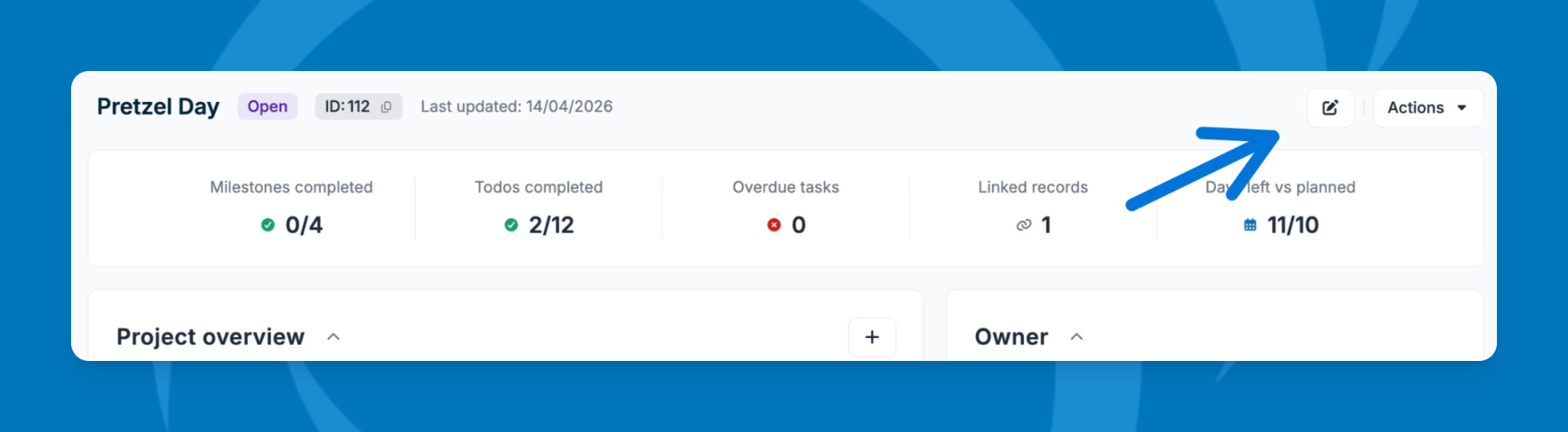
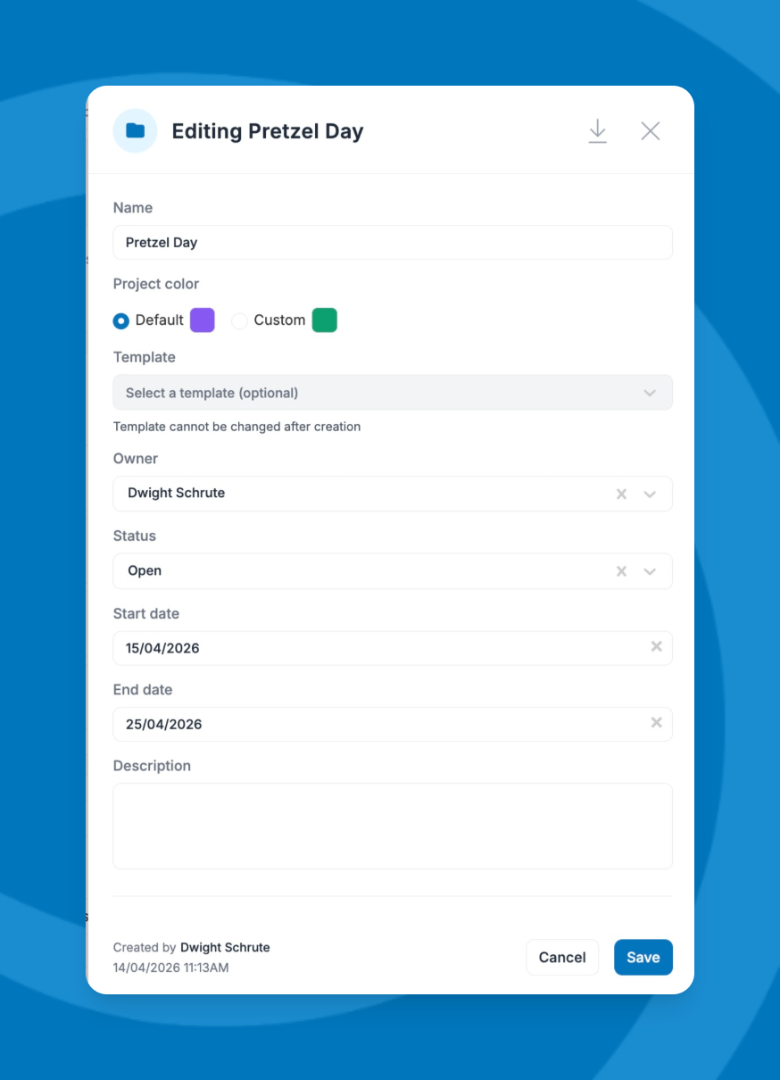
- Click the Edit (pencil) icon in the top-right corner of the project profile.
- Update any of the following: project name, color, owner, status (Open or Closed), start and end dates, description, linked deals/people/companies, milestones, or custom fields.
- Click Save to apply your changes.
Use the Actions menu
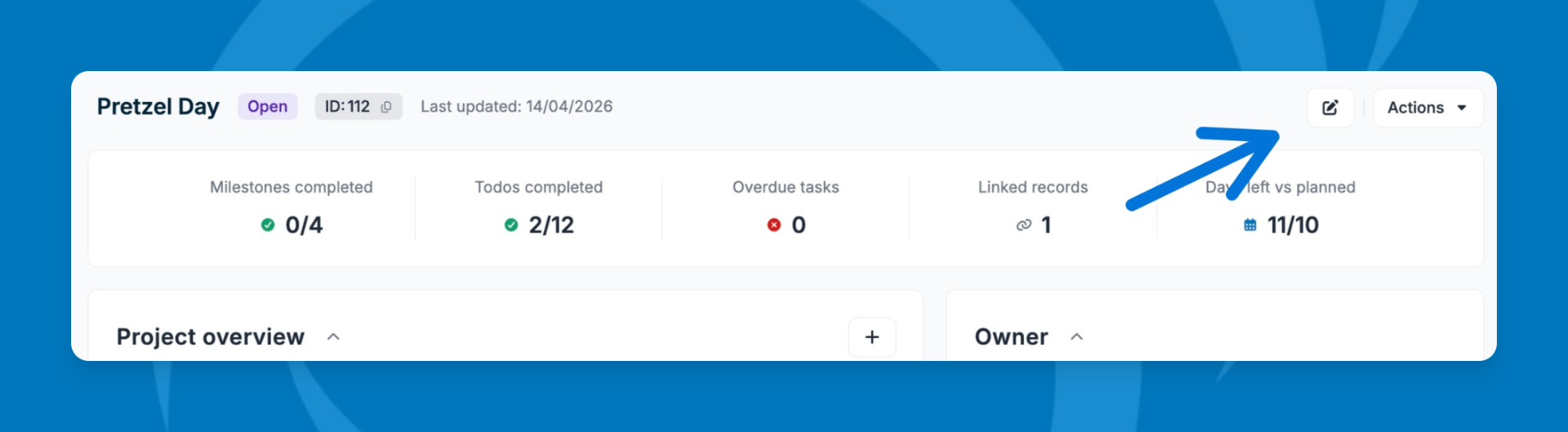
Click the Actions button in the top-right corner to access additional options:
- Edit
- Share
- Add a milestone
- Archive
- Delete
- Edit the layout of the project profile page
Need help? Contact support at [email protected].