

Before you start:
- Admin permissions required
- At least one calculated custom field must already exist on your deals.
Steps:
- Confirm that the calculated custom field you want to use has already been created.
- Navigate to Settings > Deals > Amount Automation.
- Toggle Enable Auto Update Deal Amount on.
- From the dropdown, select the calculated custom field that should drive the deal amount.
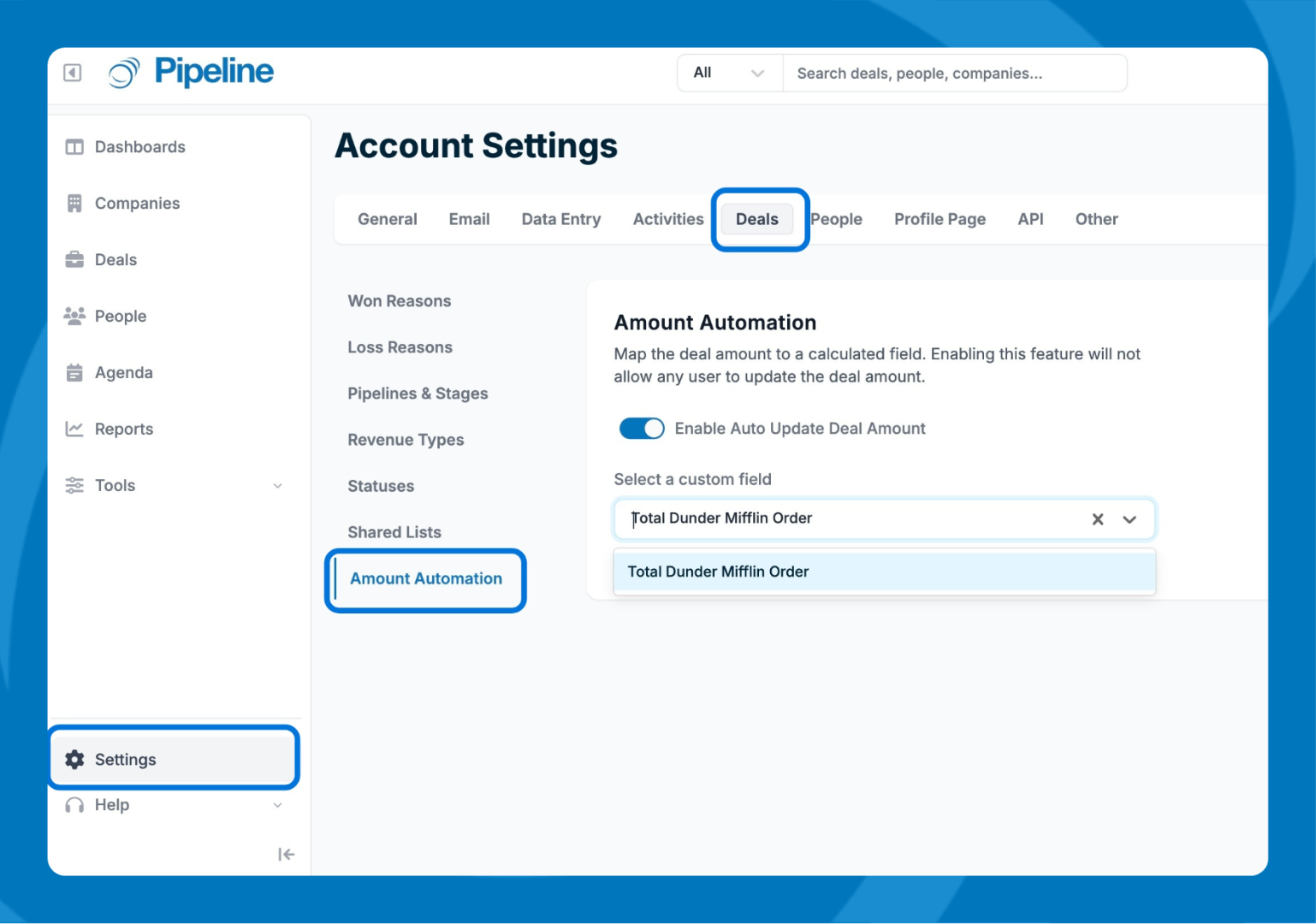
Once enabled, the deal amount will update automatically whenever the values in the mapped calculated field change. Users will not be able to edit the deal amount manually from the deal record or anywhere else in the CRM.
⚠️ Things to keep in mind:
- Existing deals won’t update immediately. Deals created before Amount Automation was enabled will sync the next time they are edited and saved.
- Switching fields? If you map the deal amount to a different calculated custom field, existing deals will reflect the new field only after they’ve been individually edited and saved.