

I don't see an Export option
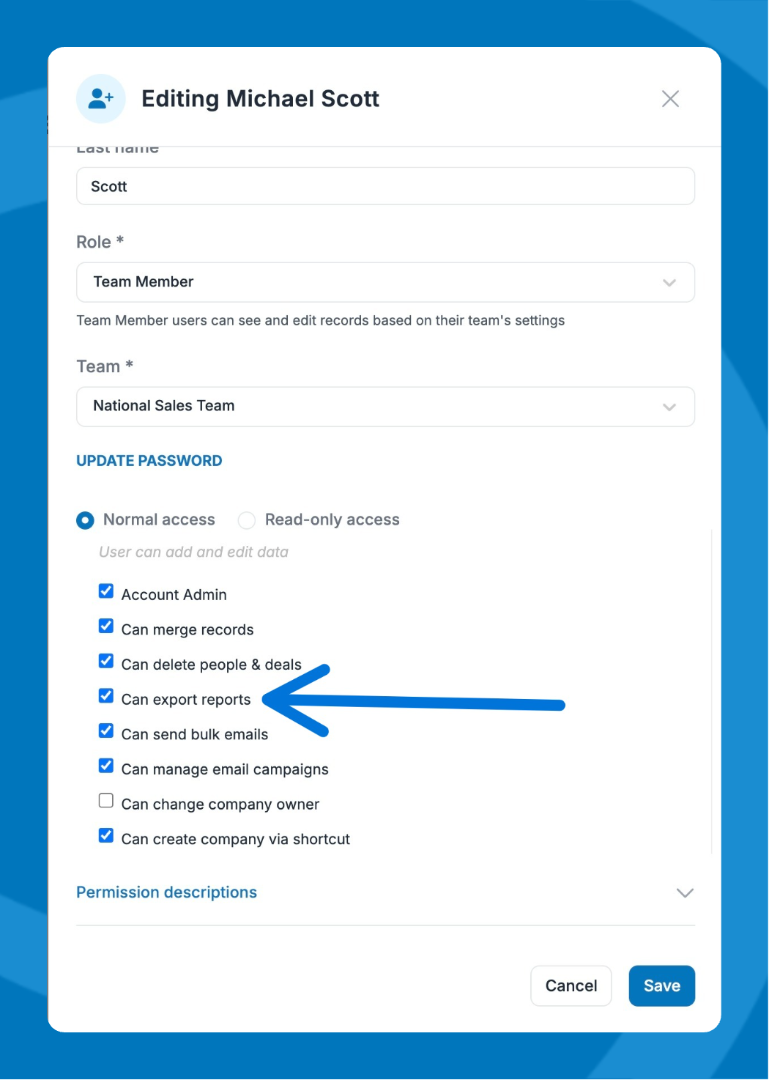
Exporting is permission-controlled. If the export button isn't visible, your account admin needs to enable it.
- Ask your admin to go to Settings > Users > Active Users.
- Find your user profile and enable the export permission.
My export didn't download right away
Exports with more than 100 records don't download instantly — Pipeline emails you a download link when the file is ready. Check your inbox for an email from Pipeline CRM.
⚠️ Note: If you don't see the email, check your spam or junk folder. If it's still not there, contact support.
I can't export as a PDF
PDF export is only available for lists with 100 records or fewer. If your list has more than 100 records, export as a CSV instead.
💡 Tip: Apply filters before exporting to reduce your list to under 100 records if you need the PDF format.
My CSV export isn't formatting correctly
This is usually a regional settings issue. Pipeline exports in UTF-8 encoding, which can conflict with Excel's default European locale settings.
Fix 1 — Change your CSV separator in Pipeline:
- Go to My Profile (top-right corner) > General.
- Scroll to CSV Column Separator and switch from Comma to Semicolon.
- Open a new Excel Workbook and click Get Data > From Text/CSV.
- Select your CSV file.
- In the Text Import Wizard, choose UTF-8 encoding and follow the prompts.
The Activities column in list views shows a full history of logged activities and comments — that format doesn't convert cleanly to a spreadsheet, so it's excluded from list view exports.
To export activities, go to the Activity Report.
Need help? Contact support at [email protected].