

Add a Deal
There are a few ways to add a deal, depending on where you are in Pipeline CRM.
- Deals list view: Click Add New button.
- Top navigation bar: Click + icon located in the top right corner and select Deal.
- Company or People Profile page: In the Deal tile, click in the + button to add a new deal.
- In bulk: From any list view, click Import > Excel or CSV to add multiple deals at once.
When you add a deal, you'll fill in a few key fields such as:
- Company name: Every deal needs a company. Start typing to search existing ones — if there's no match, Pipeline CRM will create a new company for you.
- Primary contact: Choose the main person on the deal.
- Stage / Probability: Pick the current stage. Probability fills in automatically, but you can adjust it manually.
- Owner: Assign the deal to yourself or another user. Owners, Executives, and Managers can reassign deals.
Reassign Deals
You can transfer deal ownership from the deal profile or directly from the list view.
- From the deal profile: Click the owner's name and select a new user. They'll get an email letting them know.
- From the list view (one deal): Click the owner cell inline and pick a new user.
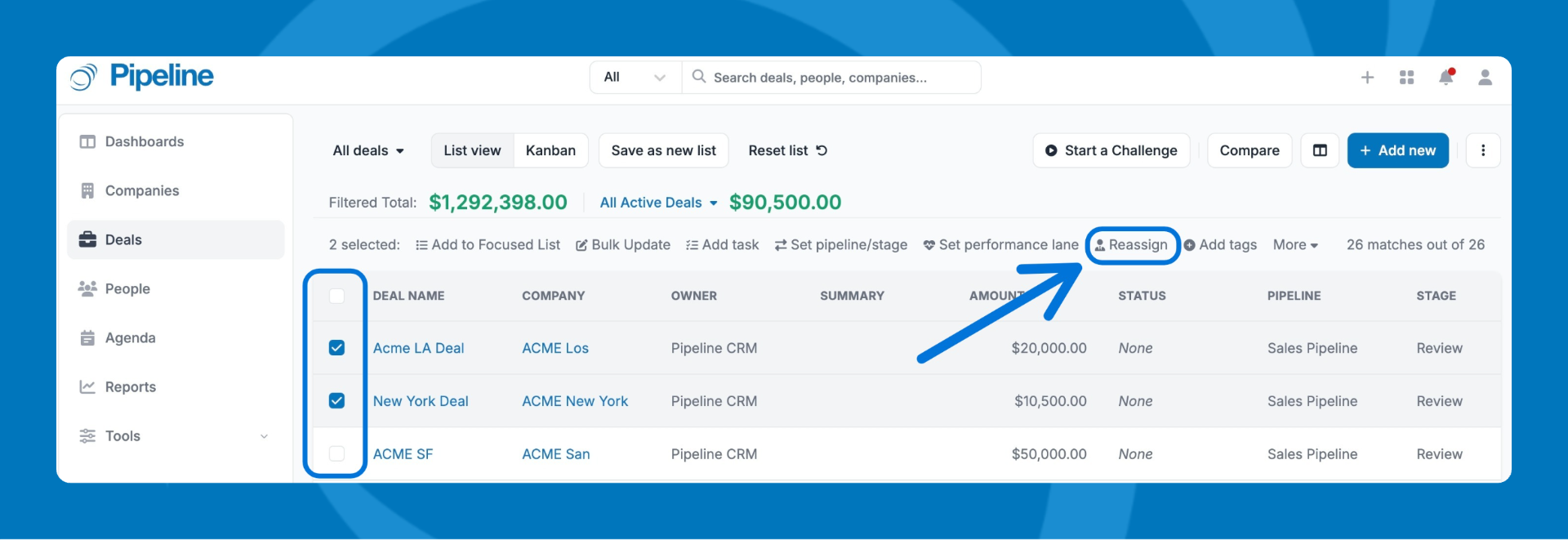
- From the list view (bulk): Check the boxes next to select multiple deals, then click Reassign and select the new owner.
Clone Deals
Cloning is handy when you're working a similar opportunity and don't want to start from scratch.
- Open the deal you want to clone.
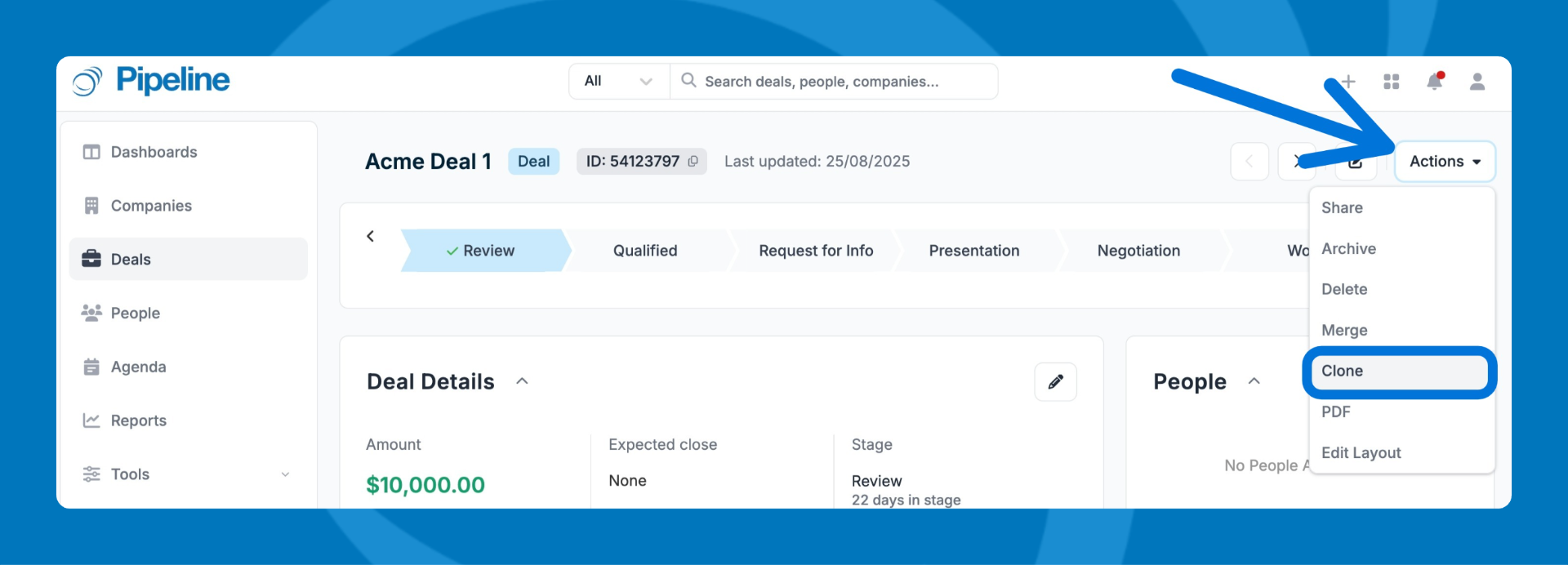
- Click Actions in the top right corner.
- Select Clone.
- Review the pre-filled form, make any changes, then click Save.
Share Deals
Sharing lets a teammate view and edit a deal even if they wouldn't normally have access to it. Shared deals show up in the Deals tab and Search bar.
- Open the deal profile.
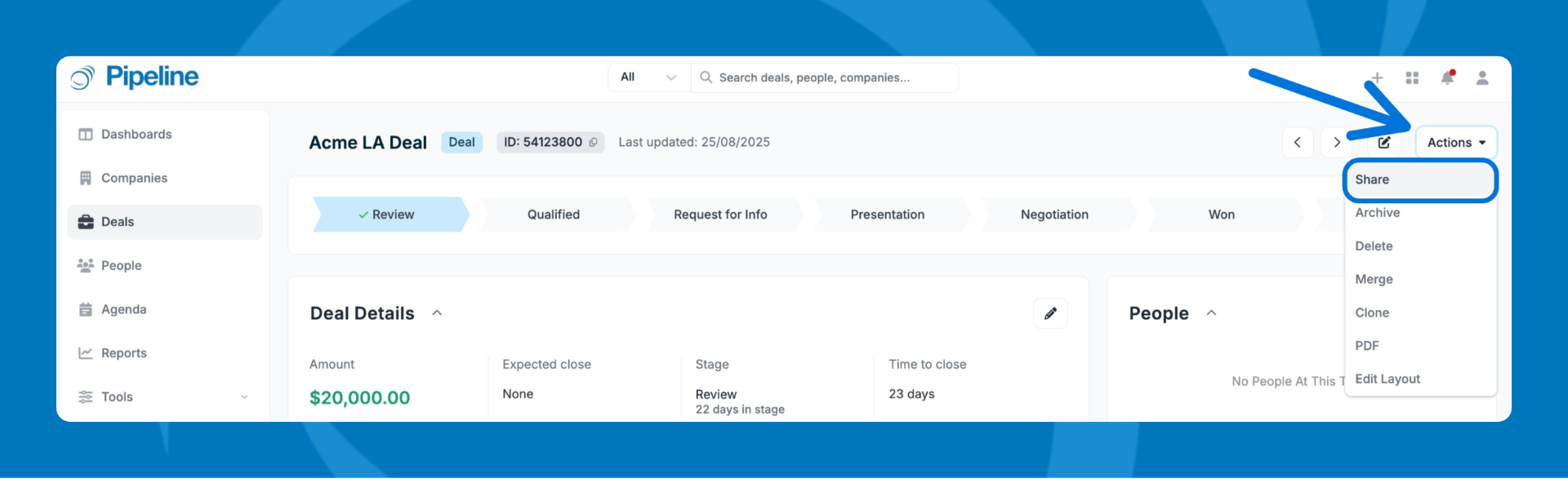
- Click Actions in the top right corner > Share.
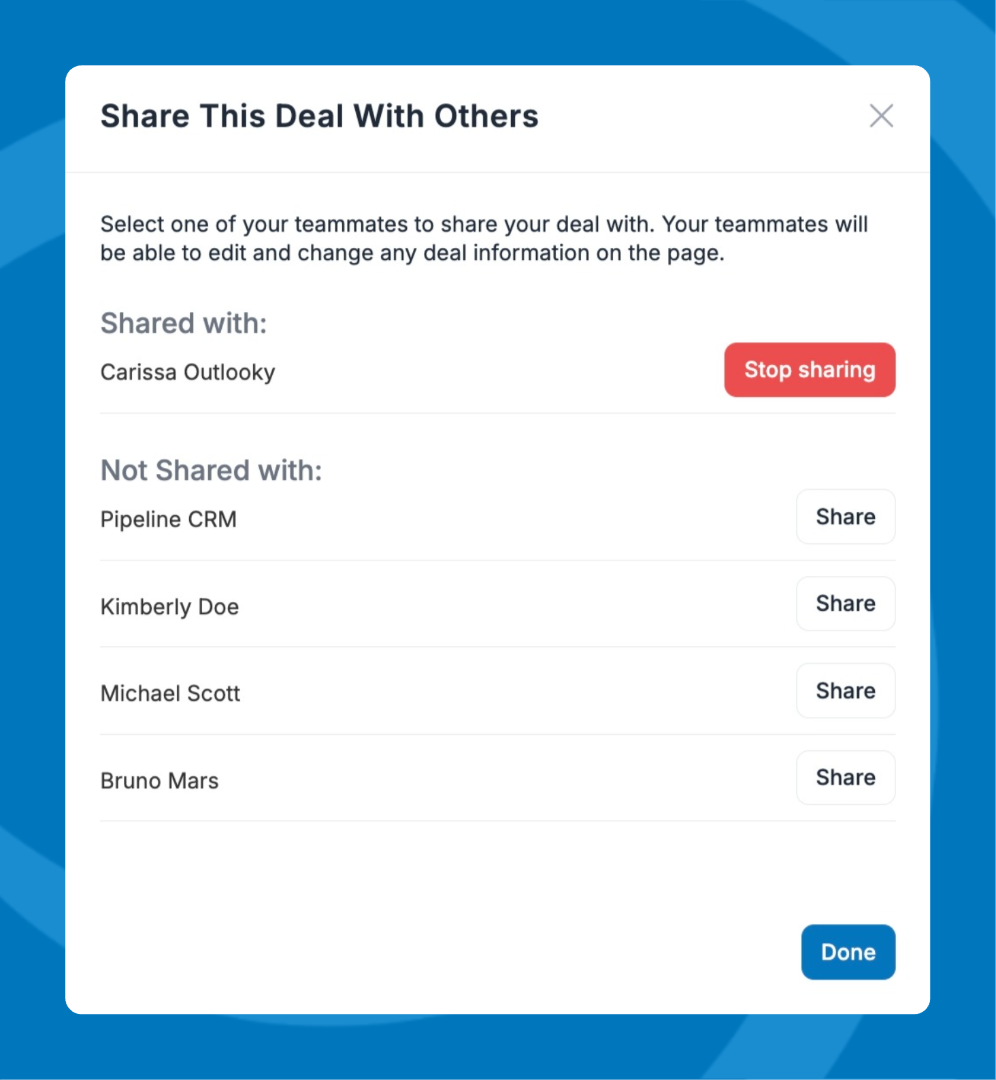
- Select a user from the dropdown.
- To remove access, click Share > Select Stop sharing next to their name.
Merge Deals
Got duplicates? Merging combines two deals into one, so all your activities, files, and contacts end up in the right place.
🔒 You'll need the Can merge records permission to do this. If you don't see the Merge option, reach out to your admin.
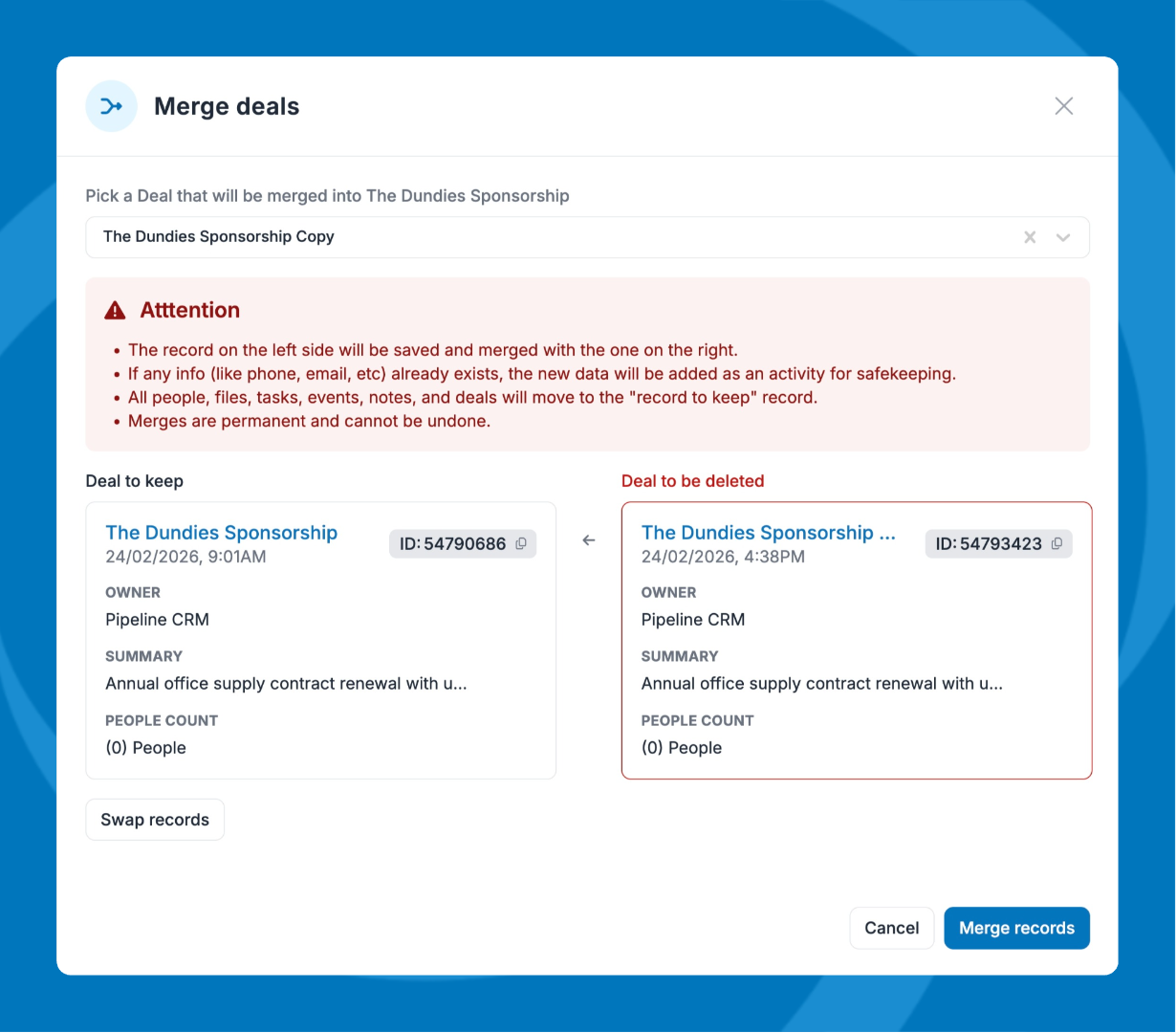
⚠️ Merges can't be undone — double-check everything before you confirm.
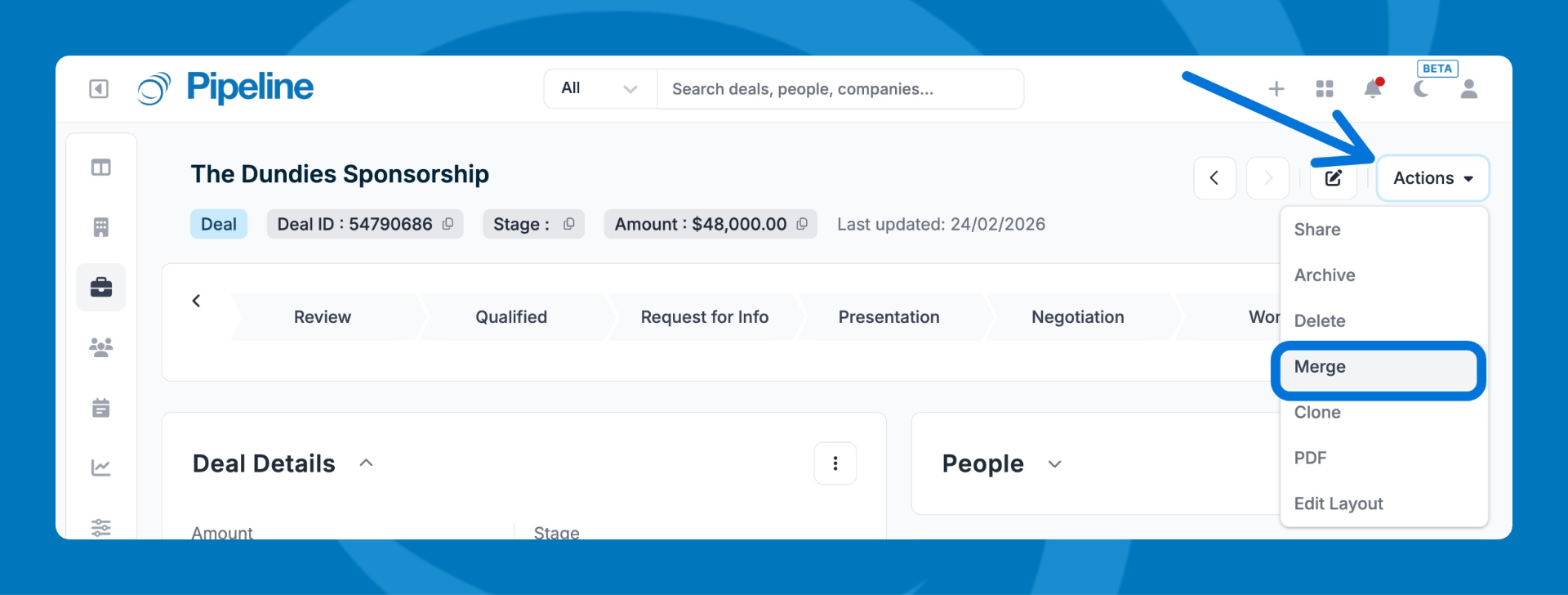
- Open one of the duplicate deals.
- Click Actions > Merge.
- The deal being removed is on the left; the one you're keeping is on the right.
- Review the details, then click Merge. To cancel, click X or Cancel.
Archive Deals
Archiving removes a deal from your active pipeline, dashboards, and reports without deleting anything. It's perfect for deals that are done but that you might need to reference later.
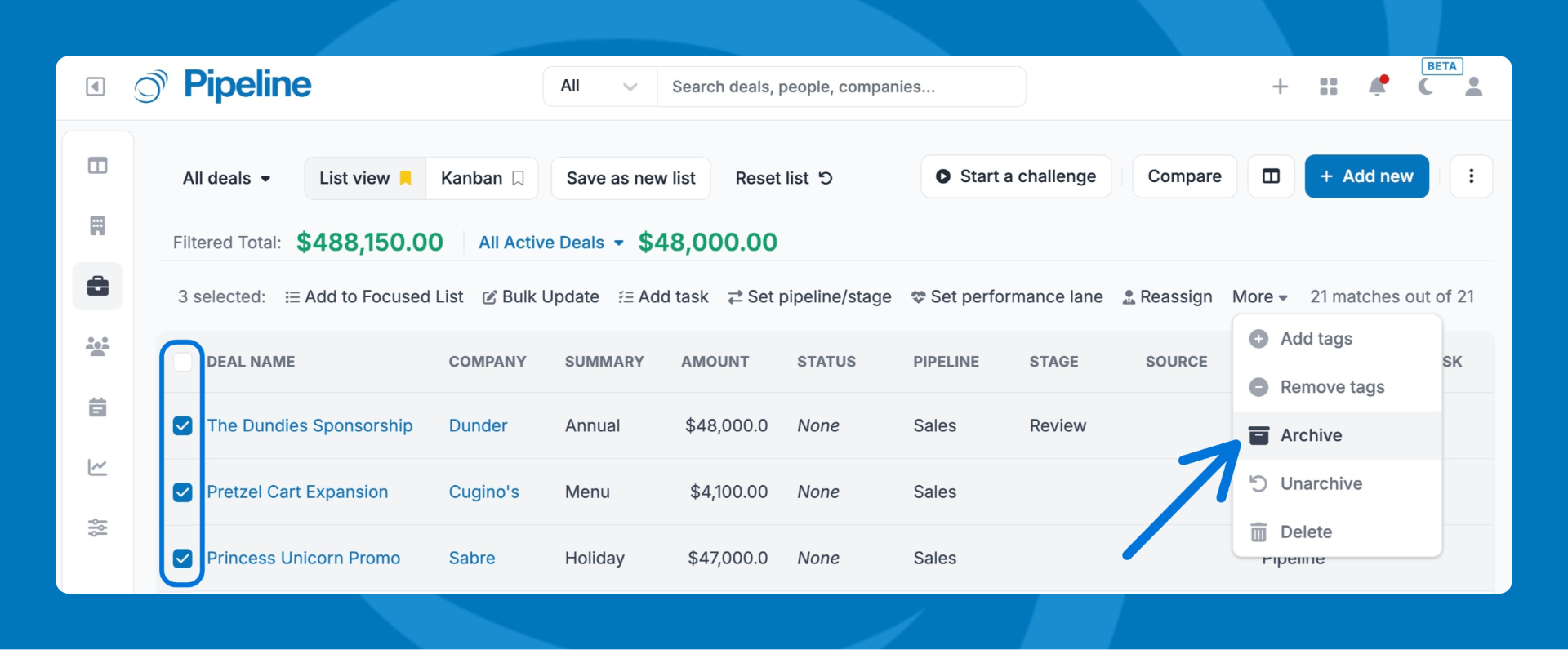
From the list view: Check the box(es) next to the deal(s), click More, then select Archive.
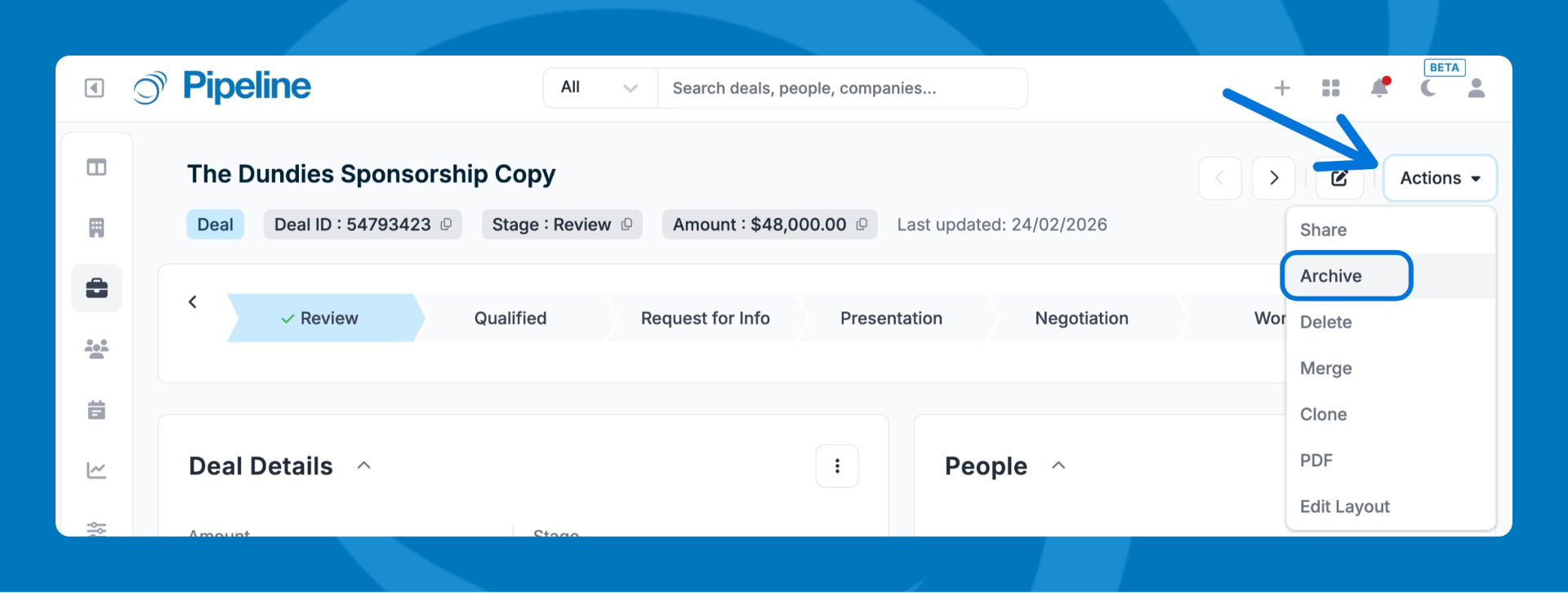
From the deal profile: Click Actions > Archive.
Find Archived Deals
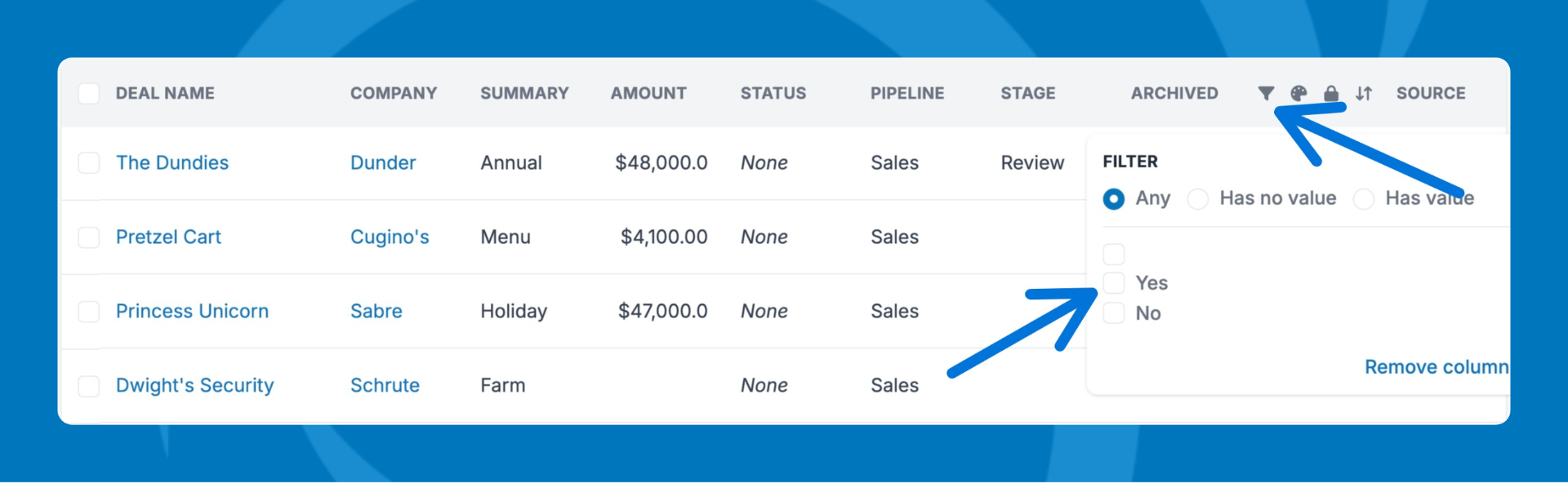
Add the Archived column to your Deals list view, then filter for Yes to see all archived deals.
Delete Deals
Deleting permanently removes a deal. Use this only for deals created by mistake or ones you're sure you no longer need.
⚠️ Deletion is permanent. If you might need the data later, archive it instead.
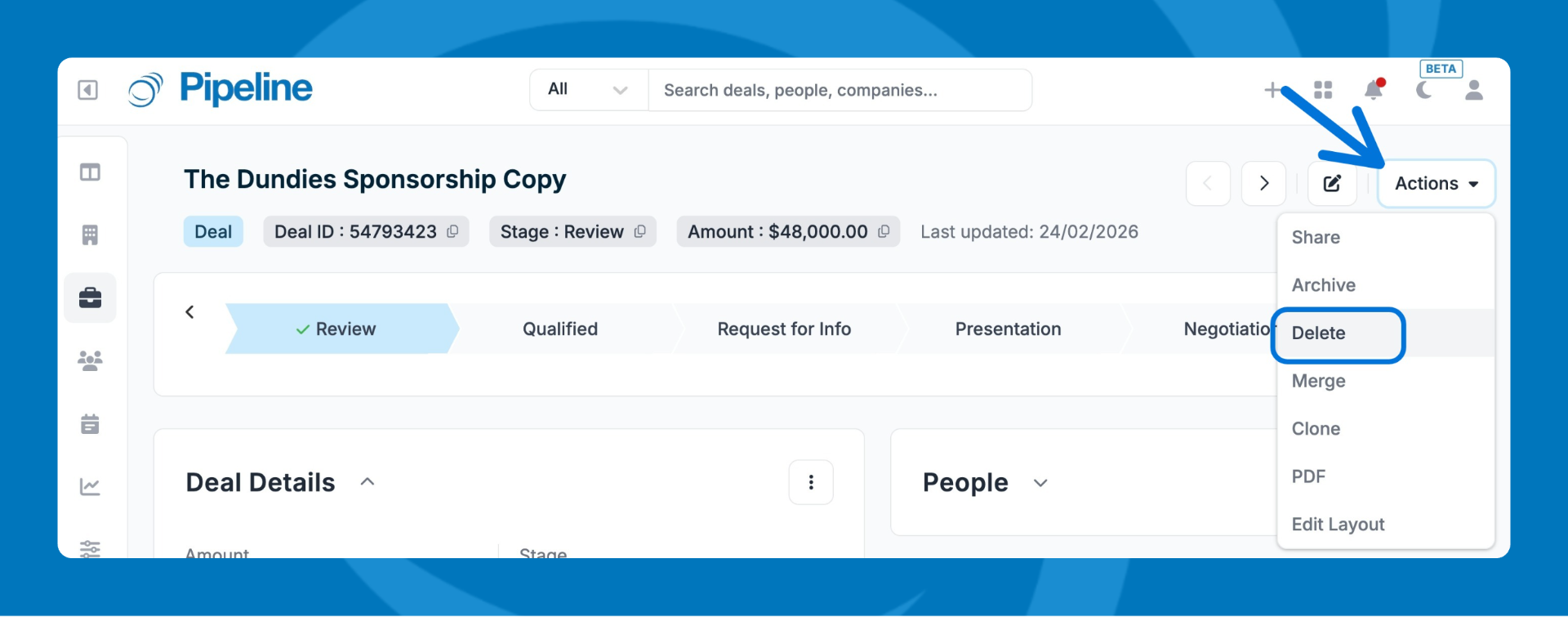
From the deal profile: Click Actions in the top right corner > Select Delete.
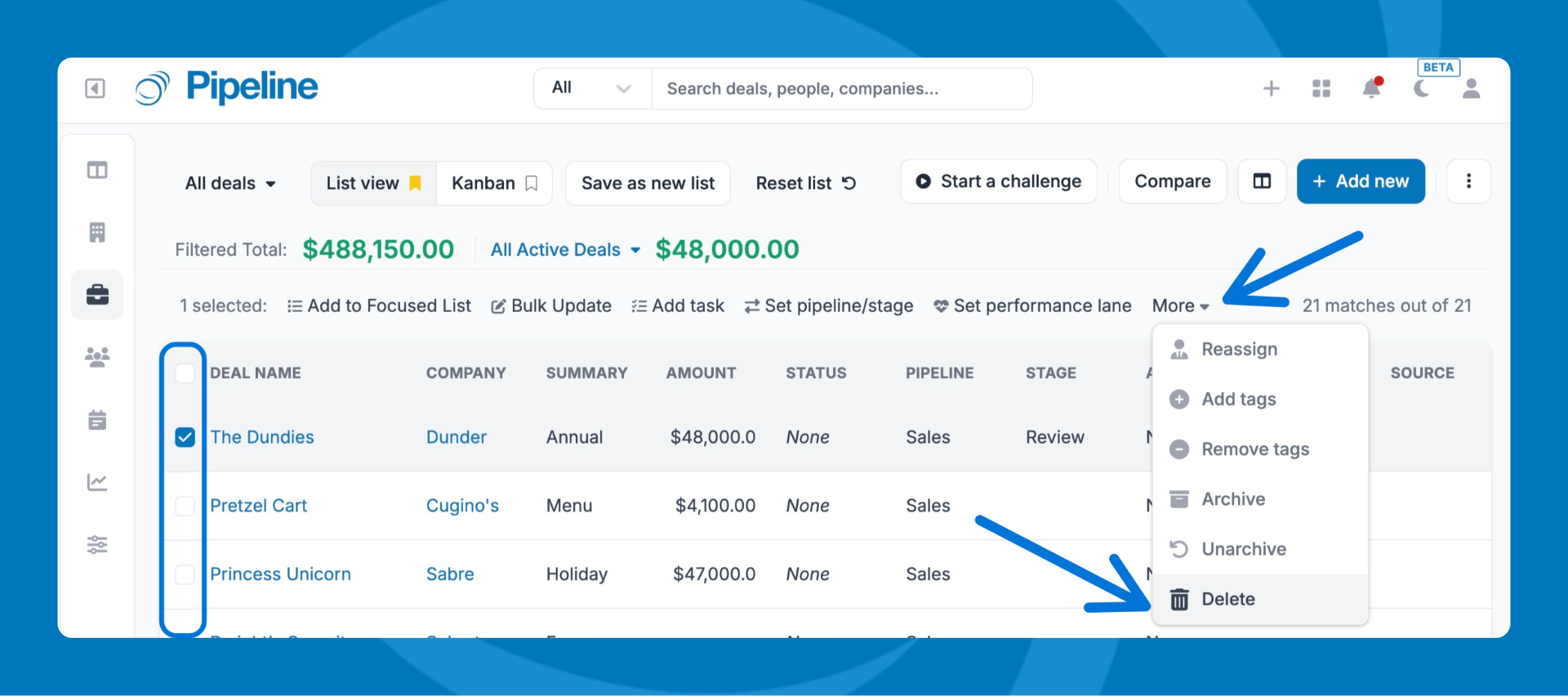
From the list view: Check the box(es), click More > Delete.
Your ability to delete deals depends on the permissions set by your administrator. If you need to recover a deleted deal, you can restore it from the Recycle Bin within 30 days of deletion.
Need help? Contact support at [email protected].