

⚠️ Note: This feature is currently available for MS-Office 365 Business calendars only. Google Calendar and personal Outlook accounts are not supported at this time.
Before You Begin
- You need an MS-Office 365 Business calendar account
- An Admin must enable this feature for your account
- You must be the meeting organizer (invites where you're only an attendee won't sync)
When you send a calendar invite from Outlook, Pipeline CRM automatically tracks attendee responses and displays them on the linked Agenda item.
- Where to find it: The Invite Response field appears on the Agenda list view and on Profile > Agenda.
- Response statuses: Sent, Accepted, Tentative, Declined, or blank (not linked to a calendar invite).
- Activity tracking: Each response creates a note like: "Michael Scott accepted the calendar invite 'Touchbase' for 21 Oct 2025 (10:42 AM)."
To use invite status tracking, first complete the Outlook calendar integration setup.
Click here for more information on how to install the Outlook integration.
Step 2: Send an Invite That Syncs to Pipeline
- In Outlook, create a New Event.
- Add your attendee(s).
- Apply the Pipeline category to the event.
- Send the invite.
If the meeting is created by Calendly (or another scheduling tool)
If an event lands on your Outlook calendar automatically (for example, from Calendly):
- Right-click the event in Outlook.
- Set the event Category to Pipeline.
Step 3: View events and their invite status in Pipeline
Once synced, you can see your meeting invites inside Agenda and filter them by their status.
- Go to Agenda.
- Click the column icon and enable Invite Status.
- Look for the meeting’s Invite Status and filter by:
- Accepted
- Pending
- Declined
Pipeline automatically links calendar events based on the attendee's email address:
- Contact exists with linked deals: The agenda links to the most recently created deal.
- Contact exists but has no deals: The agenda links to the person.
- No matching contact in Pipeline: The agenda is recorded without a link.
- Multiple people invited: Pipeline uses the most recently created person/deal.
Report on invite status (Optional)
You can also report on invite statuses using Agenda reporting.
- Go to Reports.
- Select Agenda reporting.
- Filter by Invite Status (Accepted/Pending/Declined).
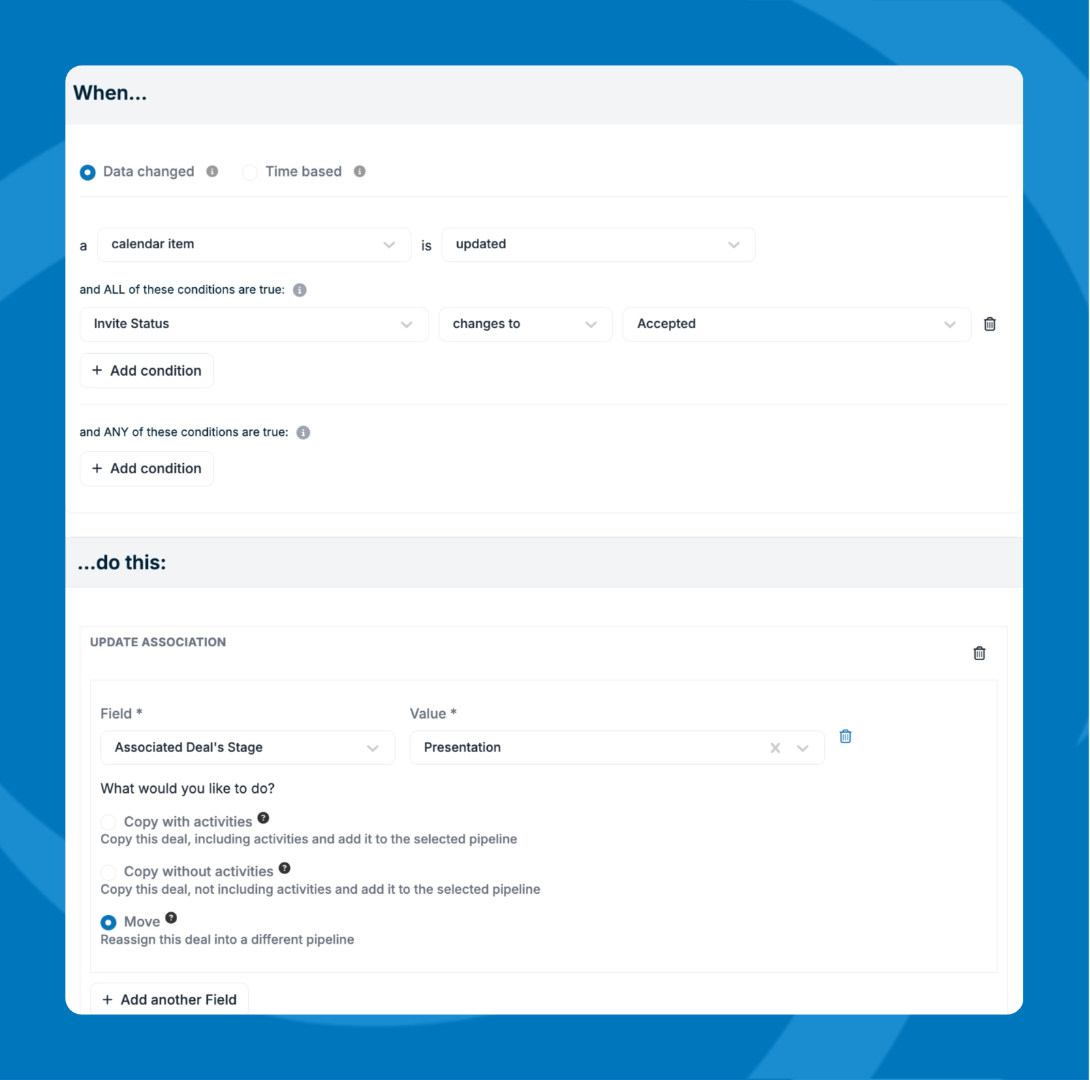
Admins can configure deal automations to update stages based on invite responses:
- Accepted → Move deal to a configured stage (e.g., "Call Confirmed")
- Declined → Move deal to an alternate stage (e.g., "No Show")
Contact your Admin to enable deal automations for your account.
Edge Cases
- Attendee removed from invite: Marked as deleted internally and filtered from the UI.
- Contact not in Pipeline: The invite is recorded, but no person is created automatically.
- Response changes (e.g., accept → decline): A new activity note is created and the status updates.
- Deleted calendar event: The existing agenda item remains in Pipeline (manual cleanup required).
Need help? Contact support at [email protected].