

Before you start
- RingCentral must be connected and enabled (see Connect RingCentral to Log Calls and Save Recordings in Pipeline CRM)
- The call must have a recording — Pipeline can only save a recording if one exists in RingCentral
You can find recordings in three places:
- Go to Tools > Call Logs to see every logged call across your team, with recordings attached where available.
- In the Transcript column, click the icon to play the recording.
- Open a person or company record and check their timeline for the logged call activity.
- Open a person or company's Files tab — recordings appear as attachments.
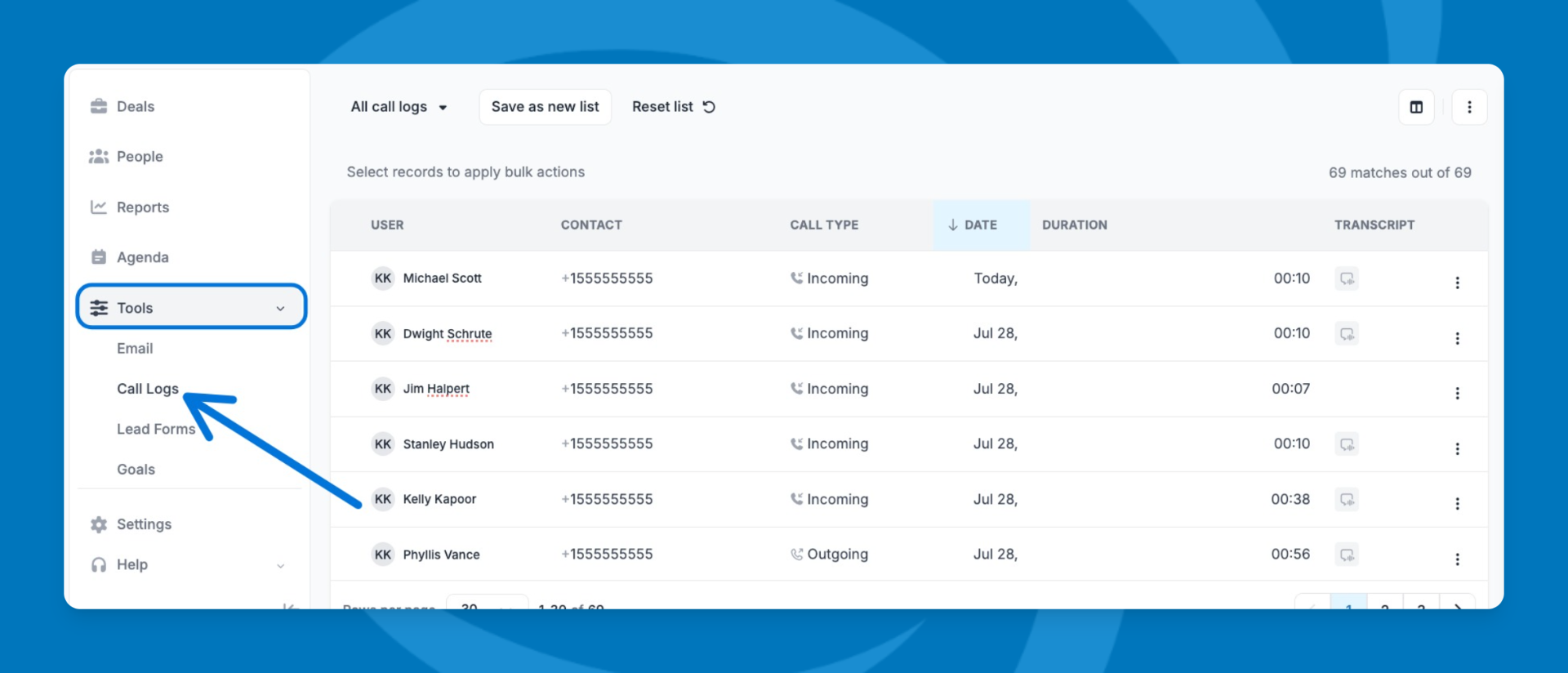
Play or download a recording
- In the Call Logs page, locate the Transcript column and click the icon to play.
- Click the call entry that has a recording attached.
- Click Play to listen. Use the speed control to play back faster or slower.
- Click Download to save the recording file.
Why a call might not have a recording
- Call recording wasn't turned on in RingCentral for that call
- The call happened before RingCentral finished processing — recordings can take a short time to appear
- The call happened before RingCentral integration recording was enabled — recordings aren't backdated
- The caller's or recipient's work number wasn't set correctly in Pipeline, so the call wasn't captured at all