

Before you start:
- Adding and managing videos requires Admin permissions.
- Training Videos is available on all plans for all users.
- Training Videos is available in the web app only — not on mobile.
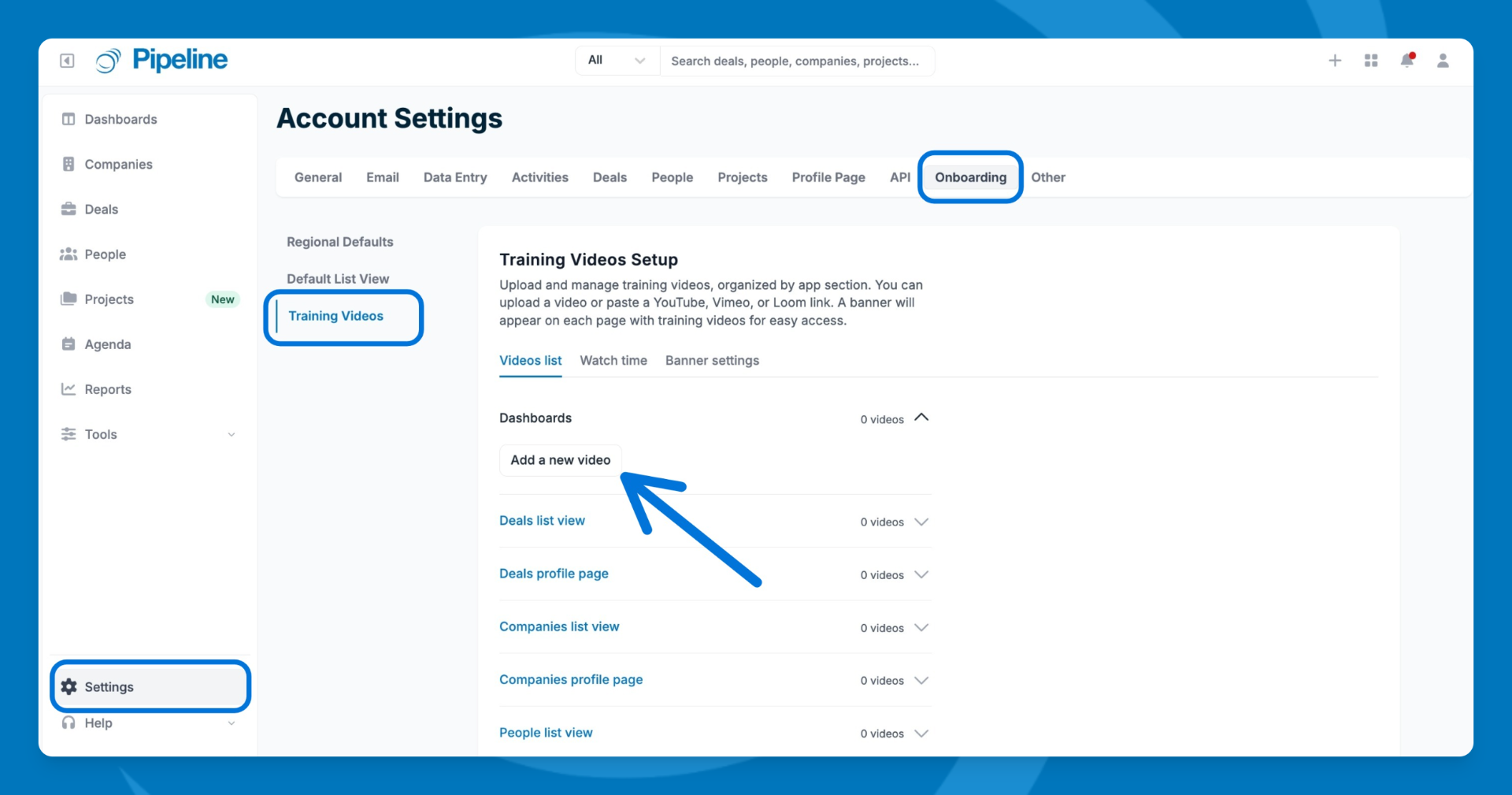
Add a video
- Go to Settings > Onboarding > Training Videos.
- Select the section the video belongs to using the section dropdown (options: Dashboards, Deals list view, Deals profile page, Companies list view, Companies profile page, People list view, People profile page, Reporting, or Other).
- Click Add Video.
- Choose how to add your video:
- Paste a link from YouTube, Vimeo, or Loom.
- Click Upload to add an MP4 file from your computer (up to 200 MB).
- Enter a Title (required).
- Enter a Description (optional).
- Upload a custom Thumbnail (optional — Pipeline CRM generates one automatically if you skip this). Accepted formats: JPEG, PNG, or WebP, up to 10 MB. 16:9 ratio recommended.
- Click Save Video.
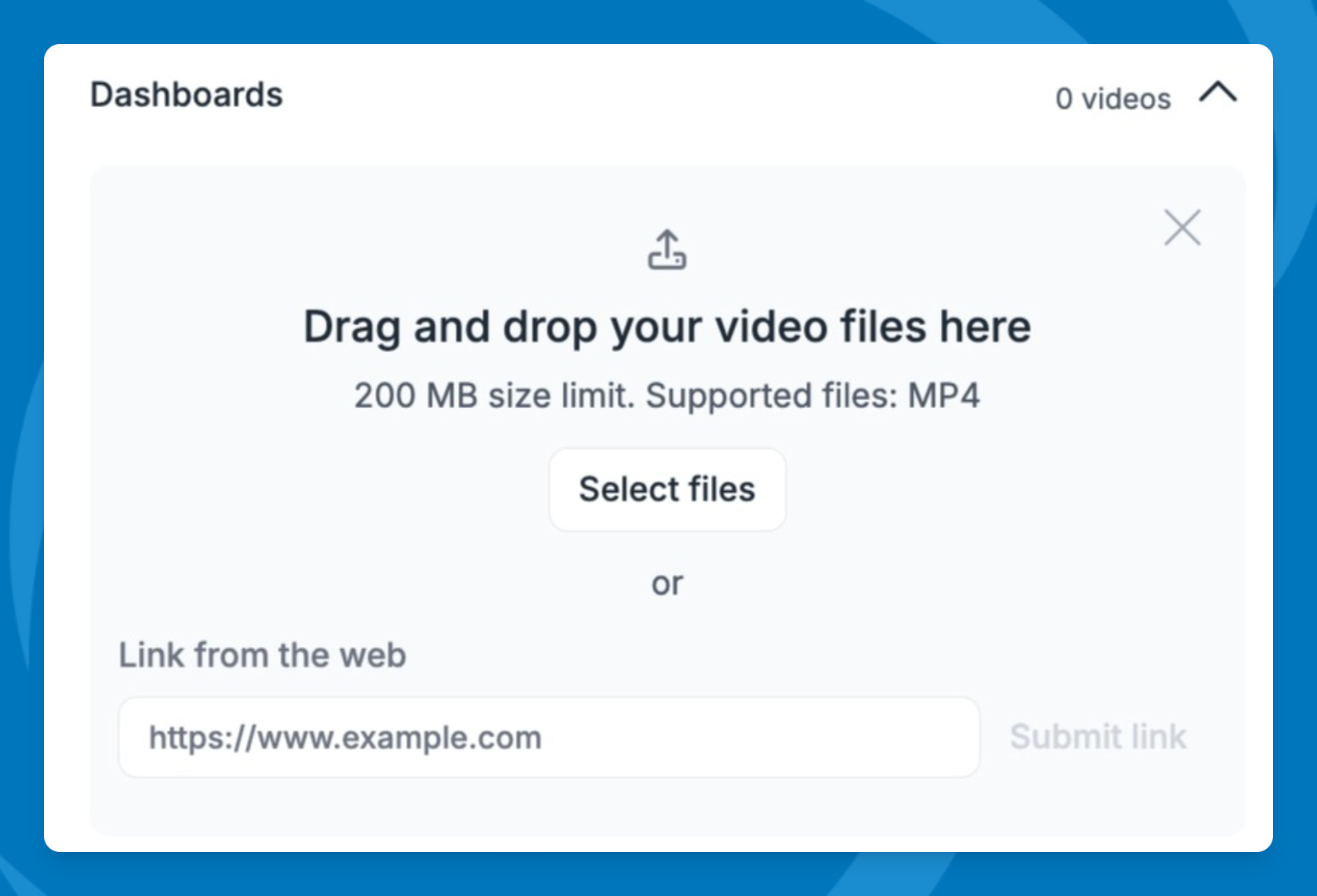
⚠️ Note: The video goes live the moment you save it — there is no draft state. Users with unwatched videos in that section will see the banner right away.
Reorder, hide, or delete a video
- Go to Settings > Onboarding > Training Videos.
- Select the section containing the video.
- To reorder: drag the video to its new position within the section.
- To hide: toggle Show on the app off. The video stays saved but won't appear to users.
- To delete: click the video row and select Delete.
⛔ Warning: Deleting a video is permanent and removes all watch history for that video. This cannot be undone. Hide the video instead if you're not sure.
Configure banner settings
- Go to Settings > Onboarding > Training Videos > Banner settings.
- To let users dismiss the banner themselves, toggle on Allow users to dismiss the training video banner.
- To replace the default banner image, upload a custom image under Banner image.
- Click Save.
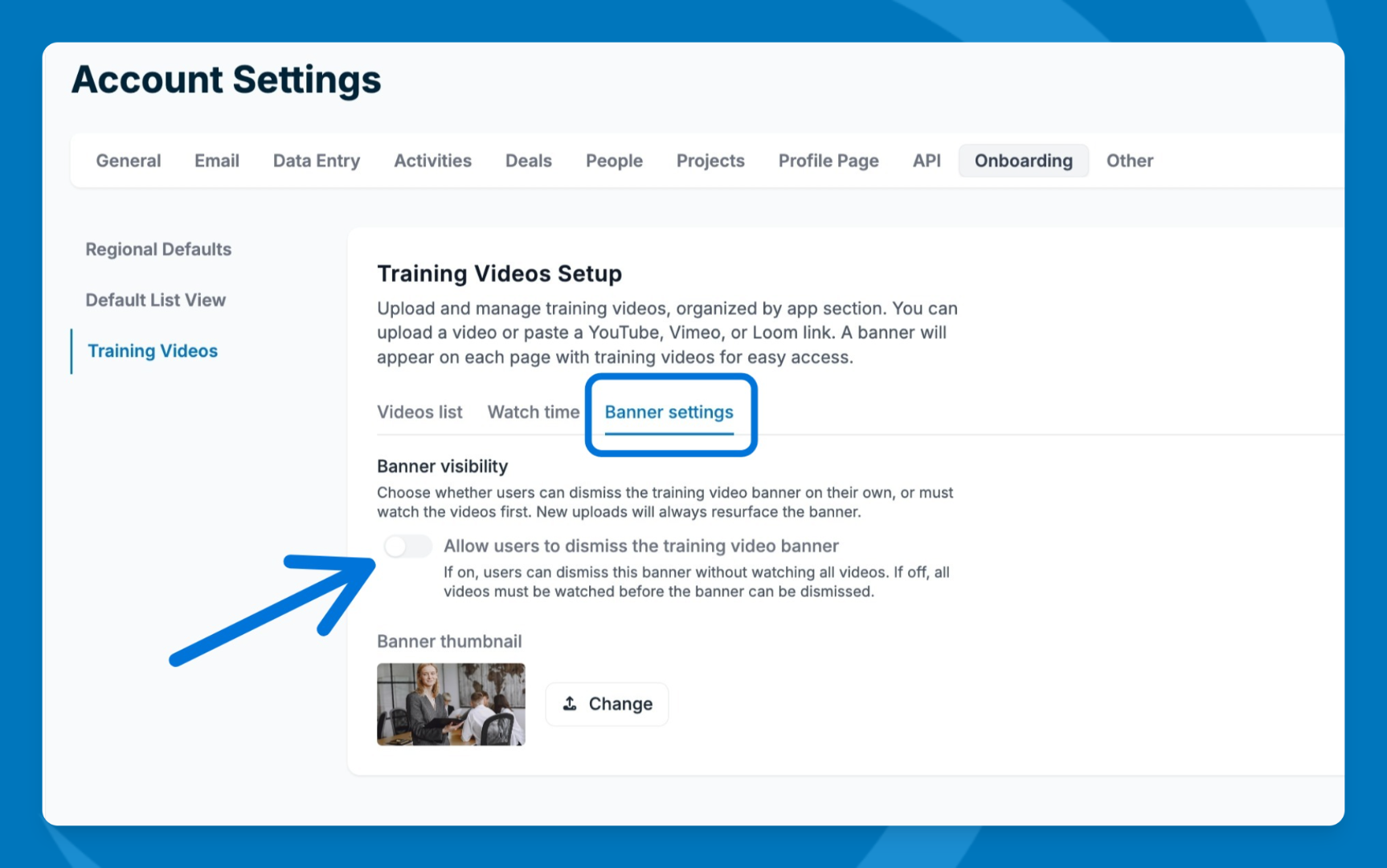
⚠️ Note: By default, users cannot dismiss the banner — it clears only once they've watched all videos in that section. When dismissal is on, users who close the banner won't see it again even when new videos are added. They can re-enable it from My Profile > Notifications.
View watch time
- Go to Settings > Onboarding > Training Videos > Watch time.
- Select a video from the dropdown.
- View per-user data: name, email, team, role, watched status, and last viewed timestamp.
- To manually update a user's watched status, click the row actions next to their name and select Mark as watched or Mark as unwatched.
⚠️ Note: Watch time shows one video at a time — there is no all-videos summary view.
For Users: Watch Training Videos
Open the video player
When a section has videos you haven't watched yet, a banner appears at the top of that page.
- Click the banner image or the Watch now button to open the video player.
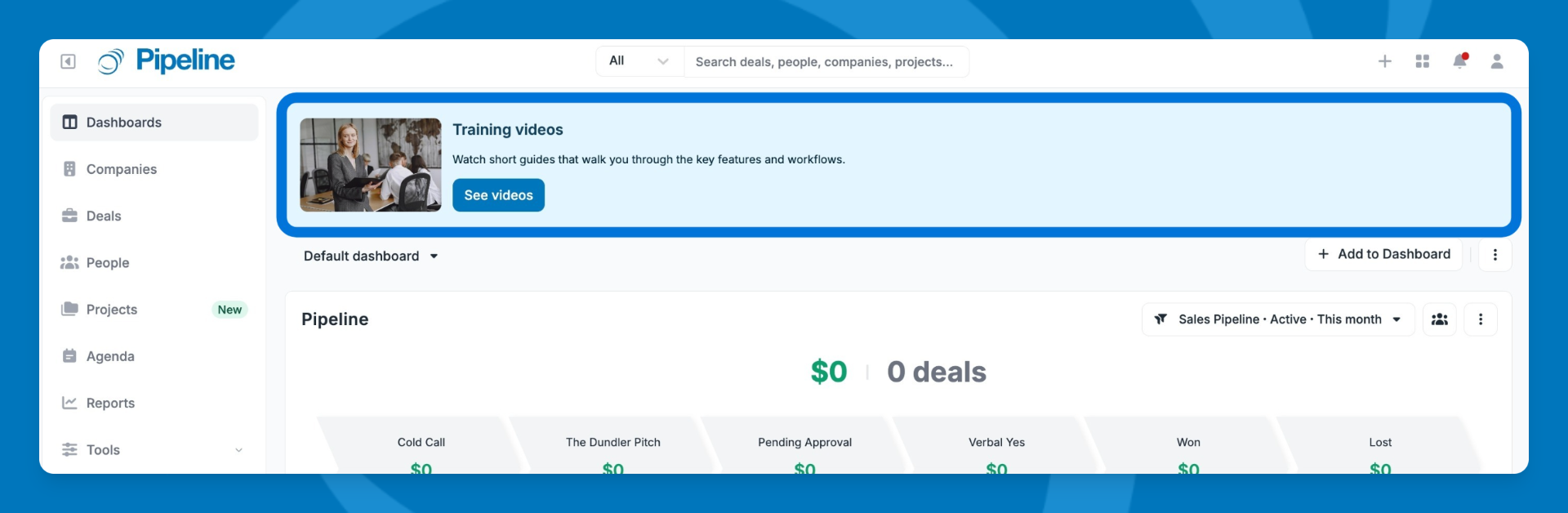
You can also open training videos any time — even after the banner clears:
- Click the ⋯ (three-dot) menu on most pages and select Training Videos.
- Go to Help > Training Videos in the top navigation to see all sections at once.
⚠️ Note: The Other section has no dedicated page, so it has no banner and no three-dot entry. Access Other videos through Help > Training Videos or the section dropdown inside the video player.
Watch a video
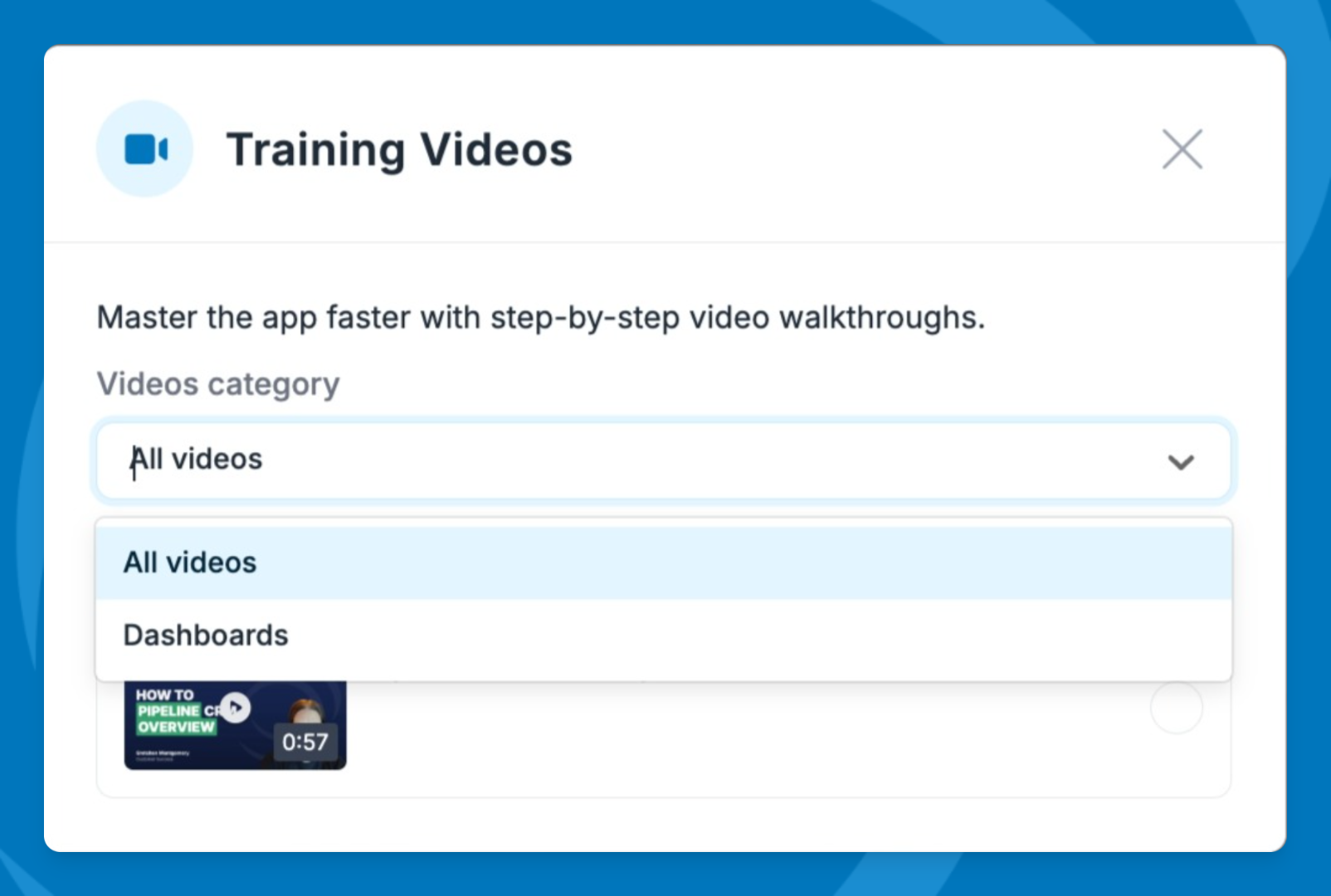
- Use the section dropdown inside the player to switch between sections, or select All videos to browse everything.
- Click a video thumbnail to start playing.
- Use the player controls to adjust volume, go full screen, or change playback speed (0.5x–2x).
Mark a video as watched
A video is automatically marked watched once you've viewed 95% of it.
To mark it manually:
- Click Mark as watched in the video player.
- Click Mark as unwatched in the video player.
⚠️ Note: Loom videos must be marked watched manually — automatic 95% tracking does not apply to Loom's player.Once you've watched all videos in a section, that section's banner clears.
Re-enable the training video banner
If you dismissed the banner and want to bring it back:
- Go to My Profile > Notifications.
- Toggle on Show the banner for where I have unwatched training videos.