

⚠️ Note: Browser notifications are enabled per browser, per device. If you use Chrome on your work laptop and Edge at home, you'll need to complete setup on each one separately.
Step 1: Enable Notifications
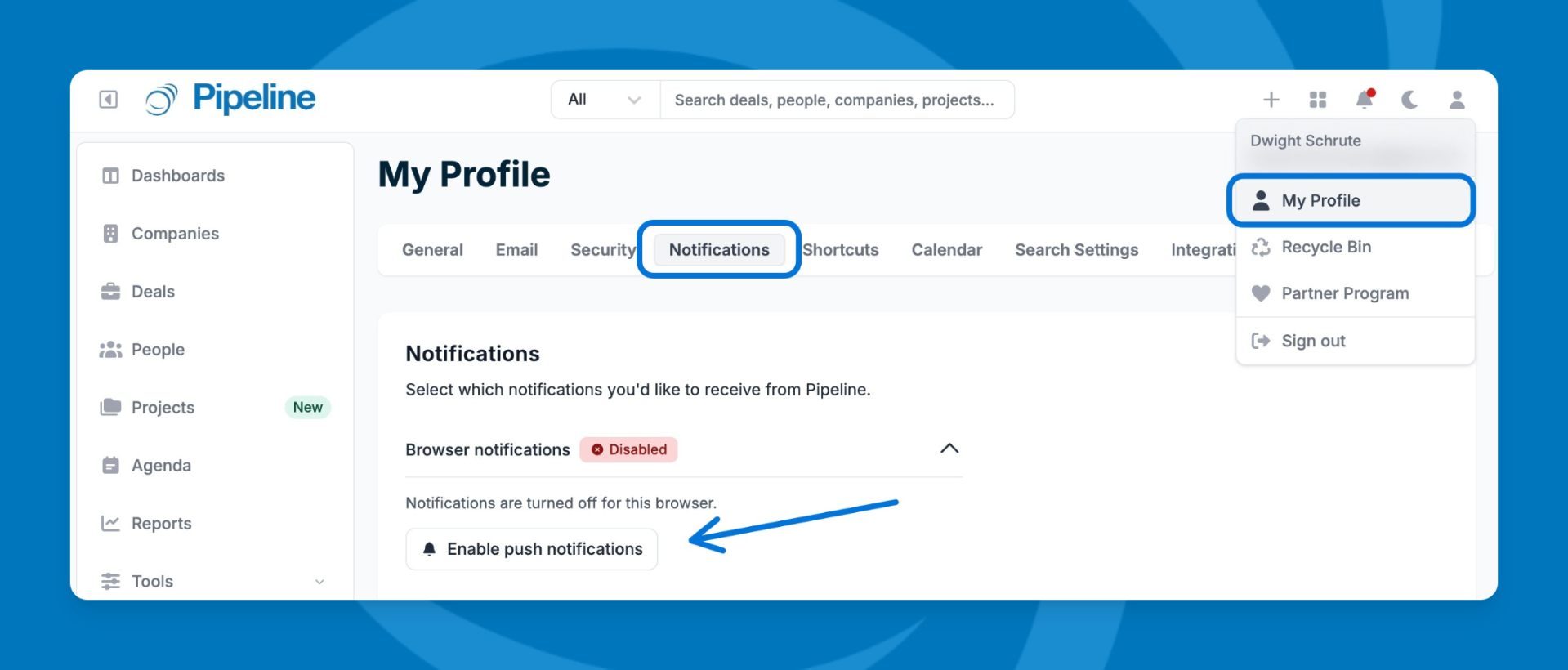
- Click your profile icon in the bottom-left corner and select Notifications.
- Click the Enable push notifications button.
- When your browser prompts you for permission, click Allow.
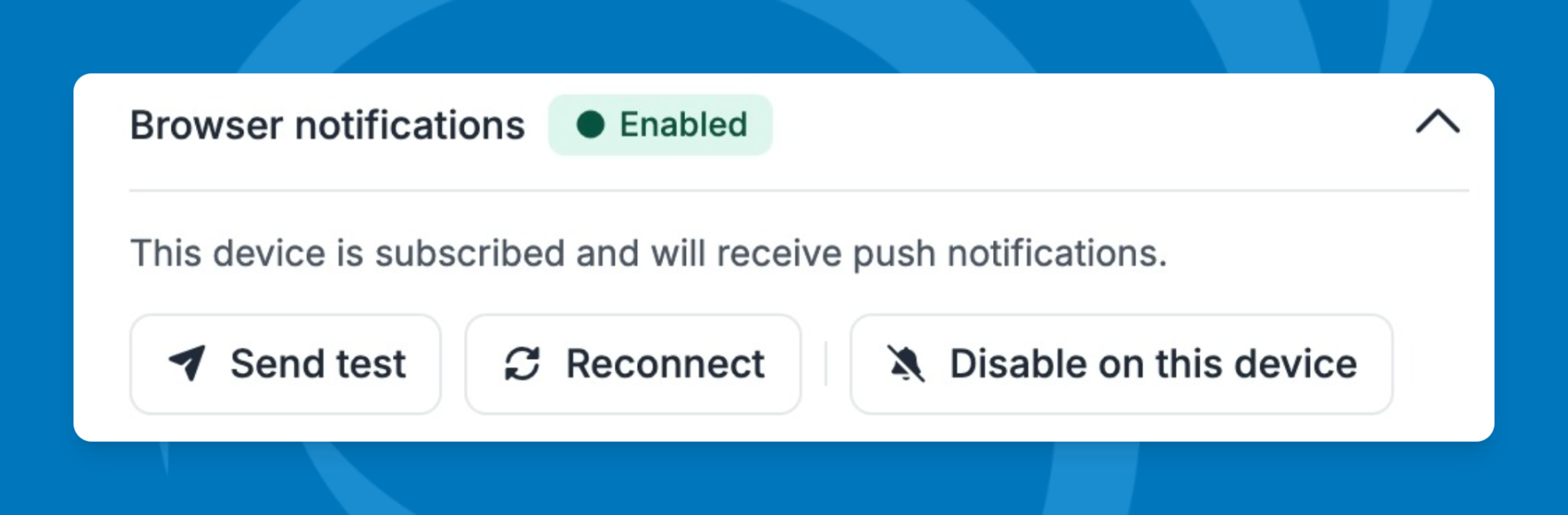
💡 Tip: Click Send Test to confirm your browser is receiving notifications before moving on.
Step 2: Choose your notification events
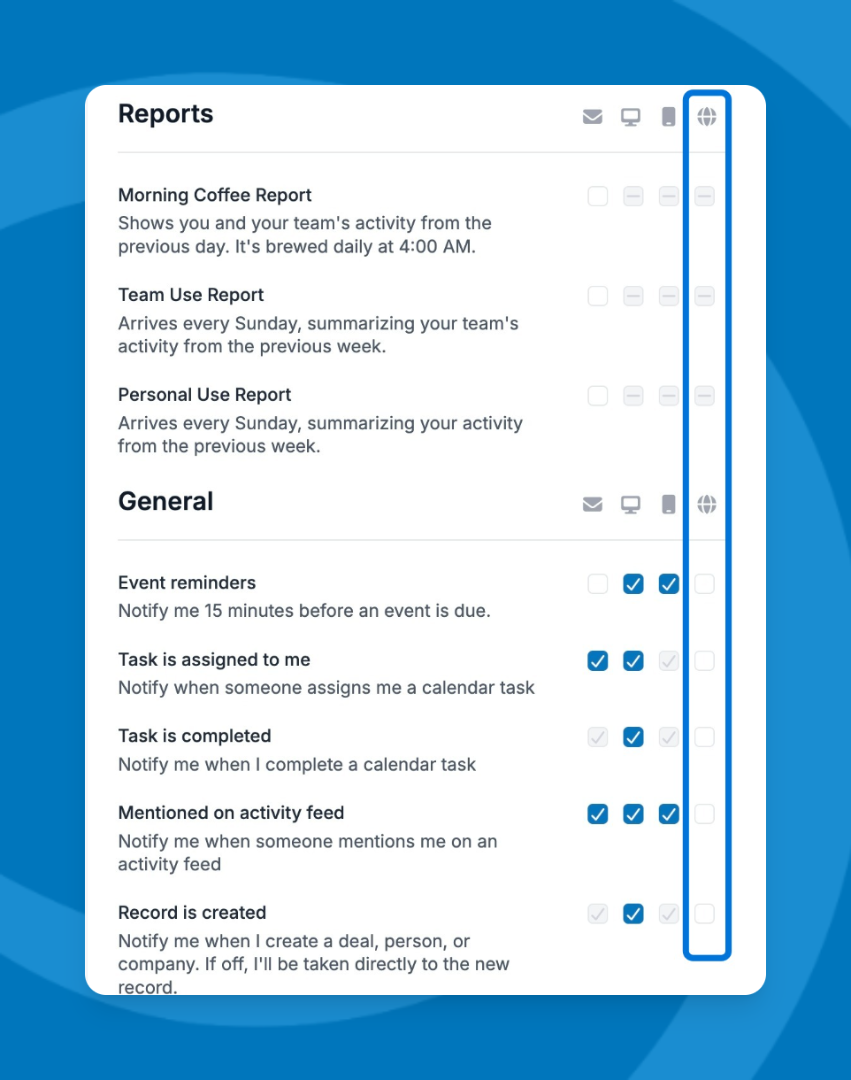
- Scroll down to the notification grid.
- In the Browser column, check the boxes for each event type you want to receive as a browser notification.
Disable browser notifications for this device
To turn off browser notifications, return to Notifications and click Disable on this device in the Connection box. You can also disable them directly in your browser or OS settings at any time.
Troubleshooting
Test notification isn’t appearing
Check that your browser has permission to show notifications from Pipeline CRM. Select your browser below for instructions:Browser permission is allowed, but notifications still aren’t showing
Your operating system may be blocking them. Check each of the following:
- Incognito / private browsing — Browser notifications don’t work in private windows. Switch to a regular window.
- Do Not Disturb or Focus mode — These modes suppress all notifications, including browser alerts. Turn them off or add your browser to the allowed list.
- Low Power Mode — Can delay or suppress notifications. Disable it temporarily to test.
- OS-level notification settings — Make sure notifications are enabled for your browser in your operating system’s settings (System Settings on Mac, Settings > Notifications on Windows).
Need help? Contact support at [email protected].