

Before you start:
- Admin permissions required
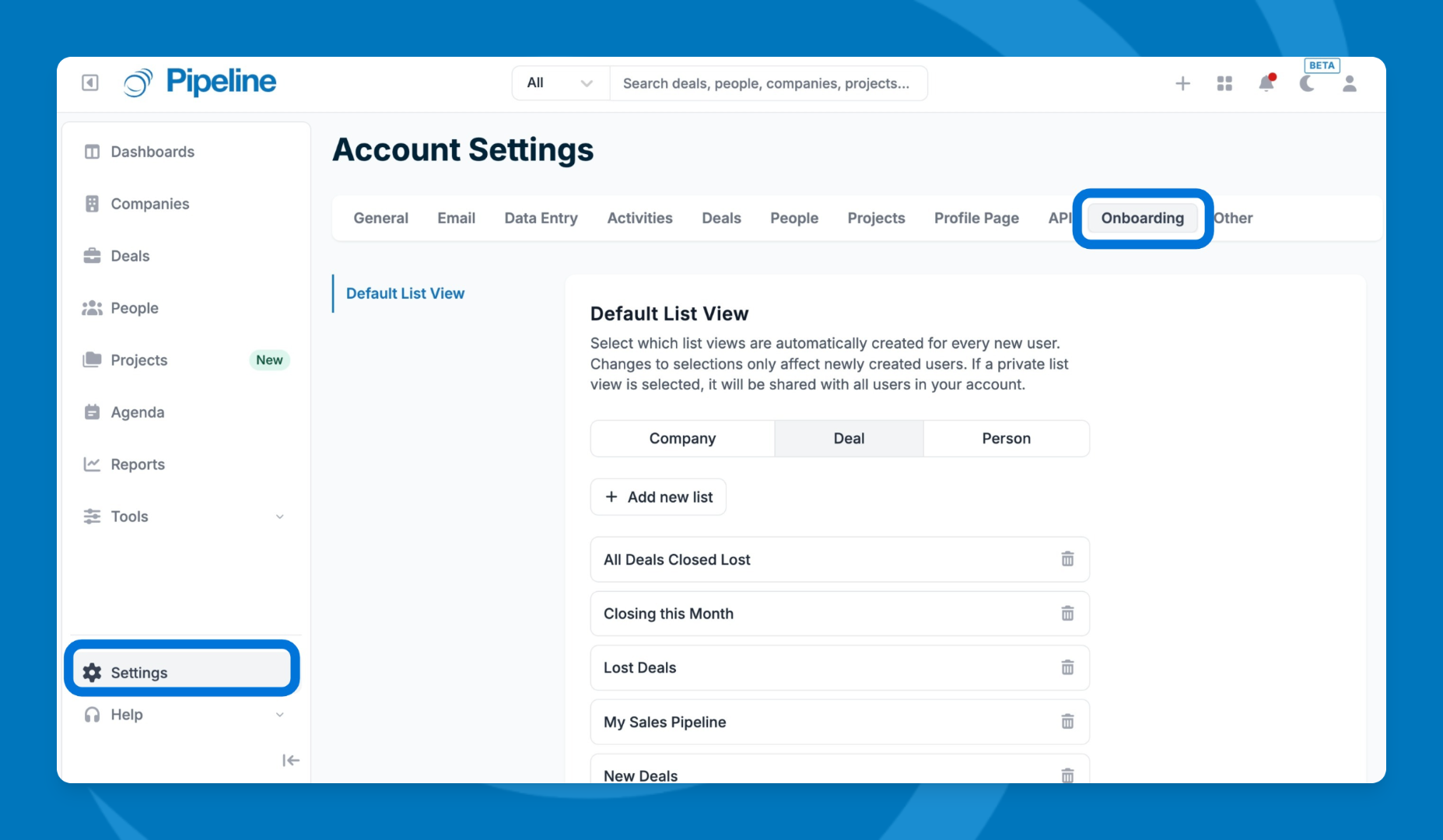
- Go to Settings > Onboarding.
- Select the record type you want to configure: Companies, Deals, or People.
- Click + Add new list to choose from your existing saved list views.
- Select the list views you want new users to start with.
- Repeat steps 2–4 for each record type as needed.
💡 Tip: You can remove Pipeline CRM's default list views from the onboarding configuration and replace them entirely with your own — so new users only see the views relevant to your workflow.
Things to Note:
- These defaults apply org-wide and are limited to list views only — they don't affect dashboards or reports. If you update the defaults later, the changes apply to new users going forward. Existing users' lists won't be changed.
- If a default list view includes custom fields that aren't visible to certain users, those columns won't appear for them — visibility rules still apply.