

Before you start: Admin permissions required to create and manage templates
Create a Quickfill Template
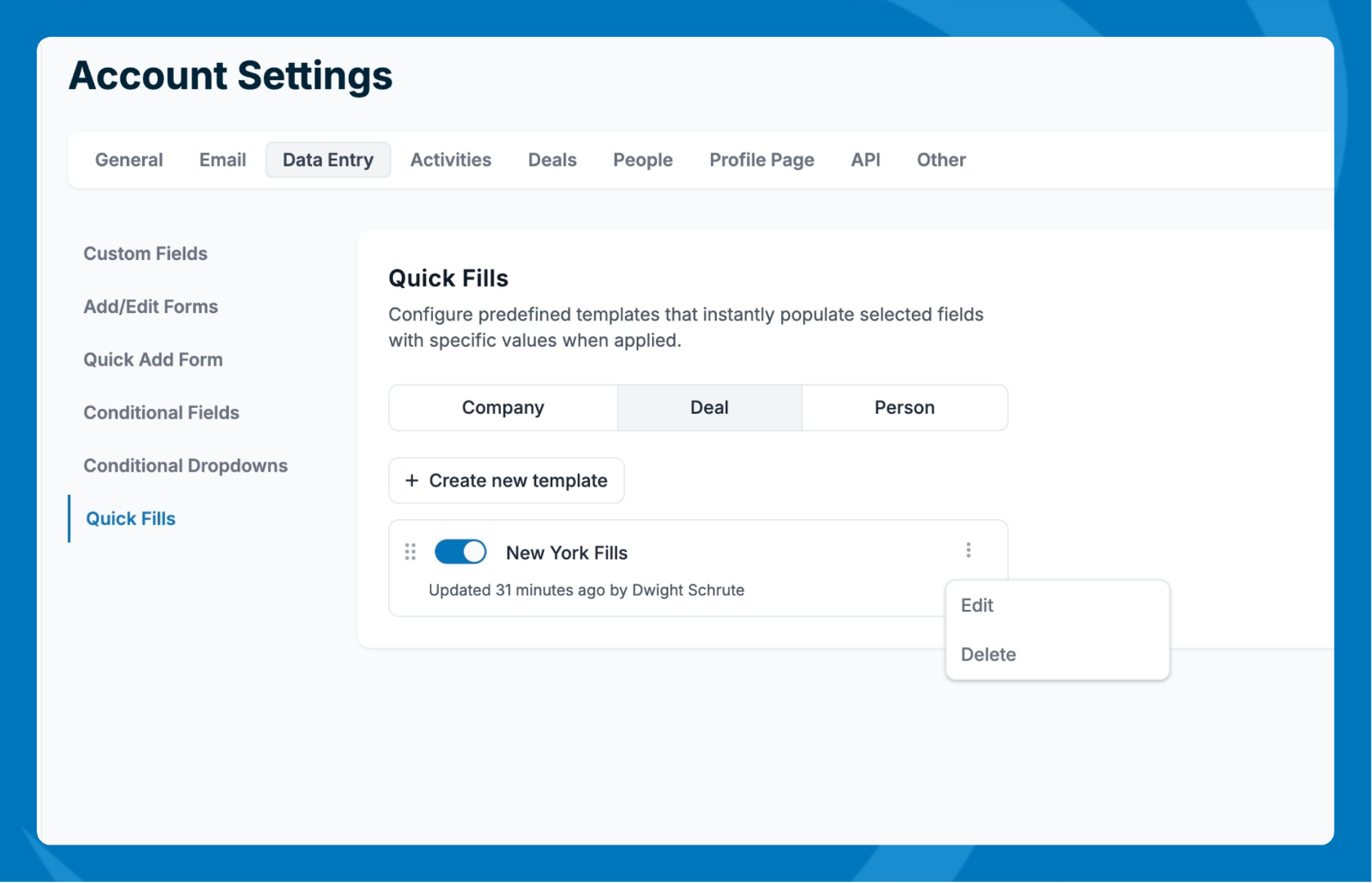
- Go to Settings > Data Entry >Quickfills.
- Select the record type: Company, Person, or Deal.
- Click New Template and enter a name (e.g., "California Accounts").
- Add the fields you want to pre-fill and enter the default values (e.g., State: California, Country: US, Region: Region 1, Industry: Industry 2).
- Click Save and Activate Template.
Apply a Template When Adding a Record
- Click the + icon in the top right corner.
- Select Company, Person, or Deal.
- Click on QuickFill and select your template.
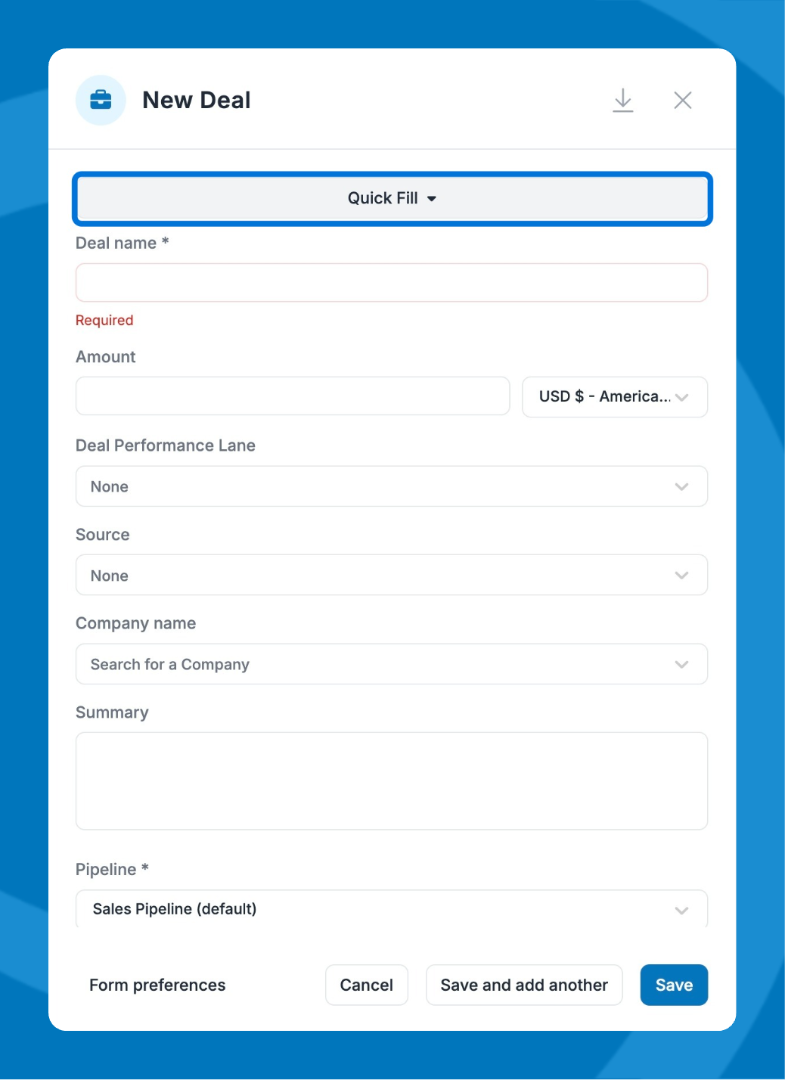
Apply a Template to an Existing Record
- Open the record's profile page.
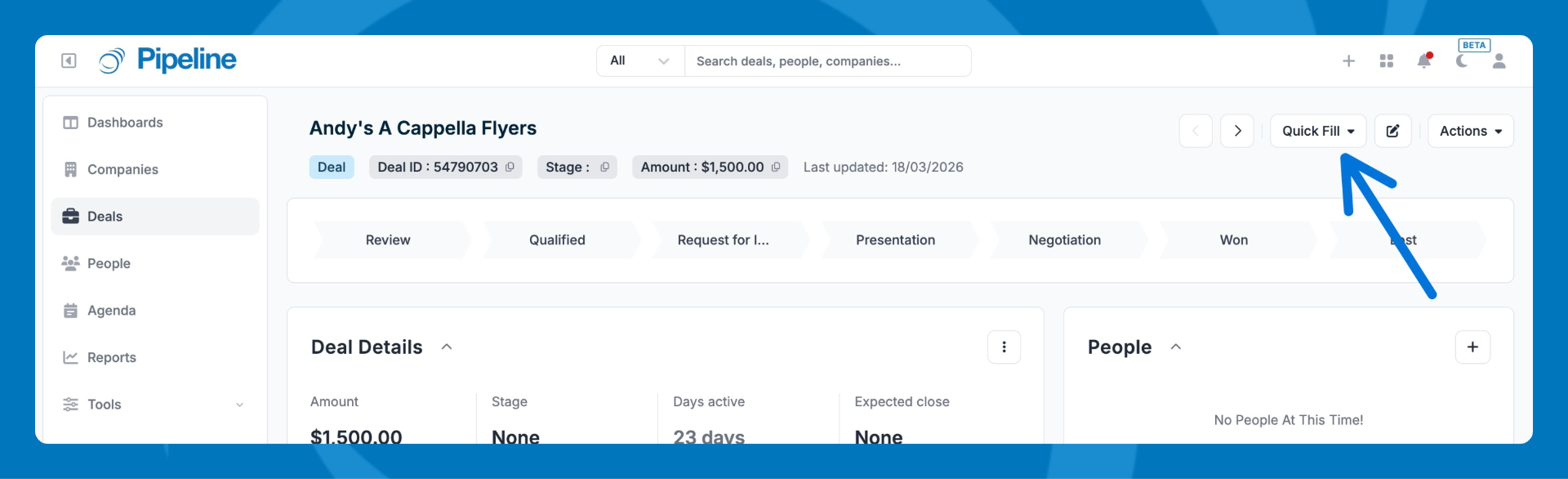
- Click Quickfill at the top of the page.
- Select your template — only the fields included in the template will update.
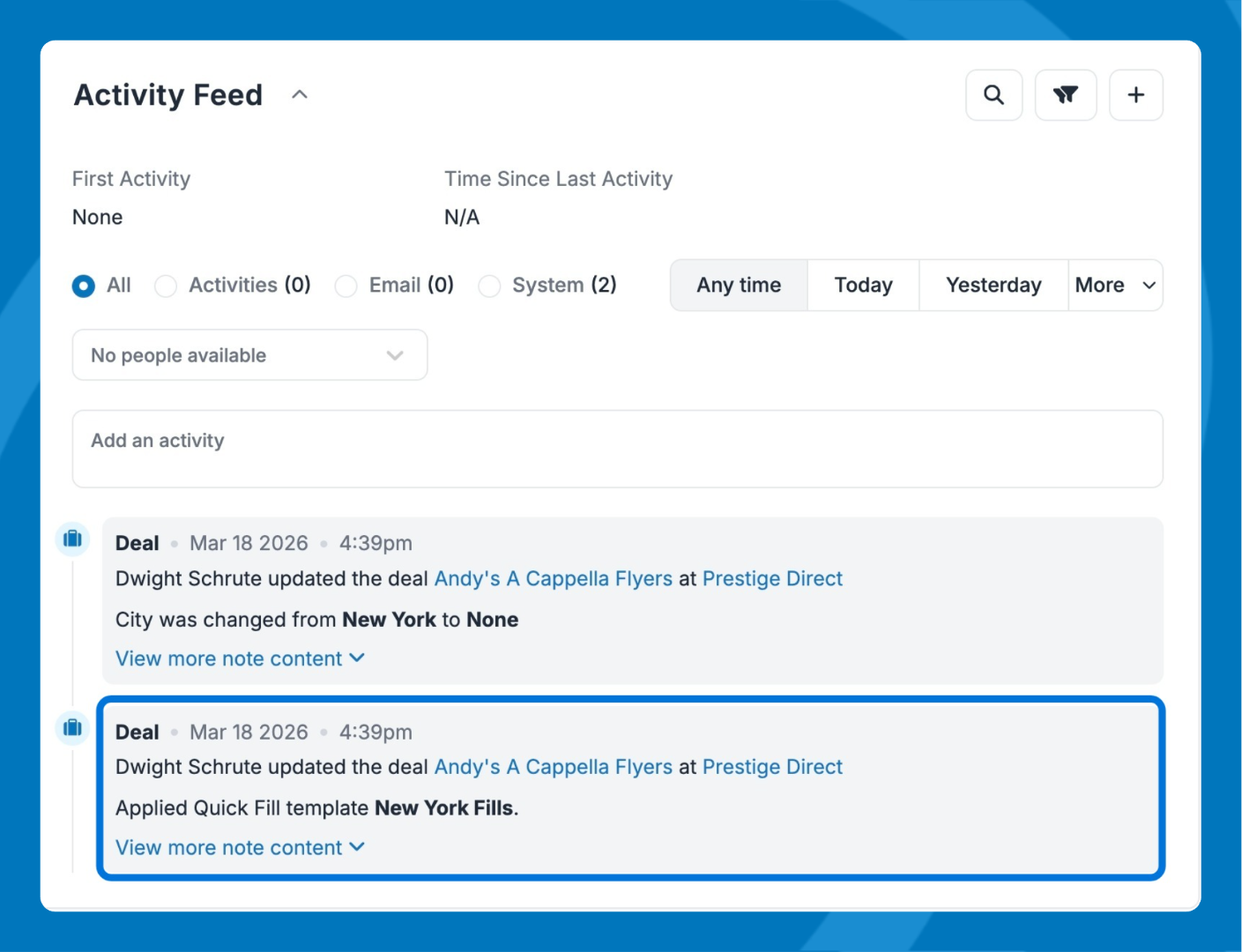
Note: Quickfill changes are logged as a system update in the record's activity history, so you can see exactly what was changed and when.
Undo a Quickfill
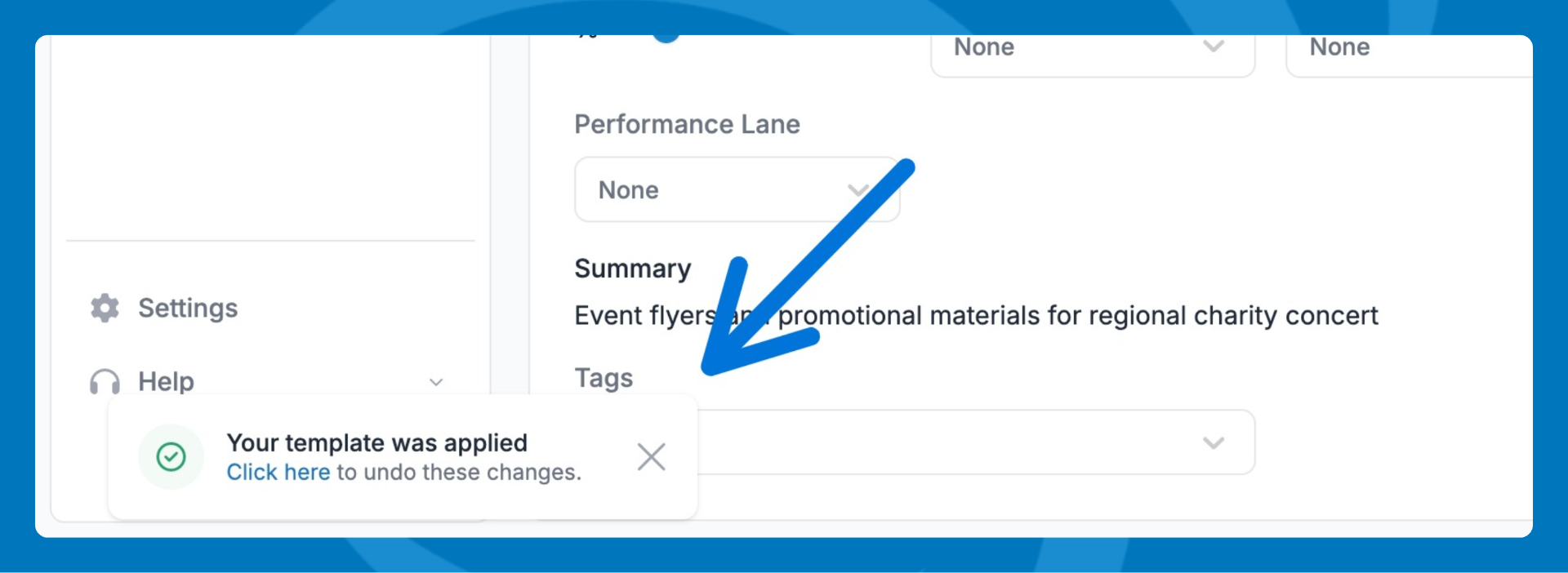
- After applying a template, you will be prompted to undo the template in the lower left corner.
- The fields will revert to their previous values.
Manage Templates
- Go to Settings > Data Entry > Quick Fills.
- Find the template and toggle it on or off.
- Click the three-dot menu to edit or delete.
Need help? Contact support at [email protected].