

Update your date format, time zone, and time format to match your regional preferences.
💡 Tip: Date and time settings are personal — changes here only affect your account, not your teammates'.
Steps:
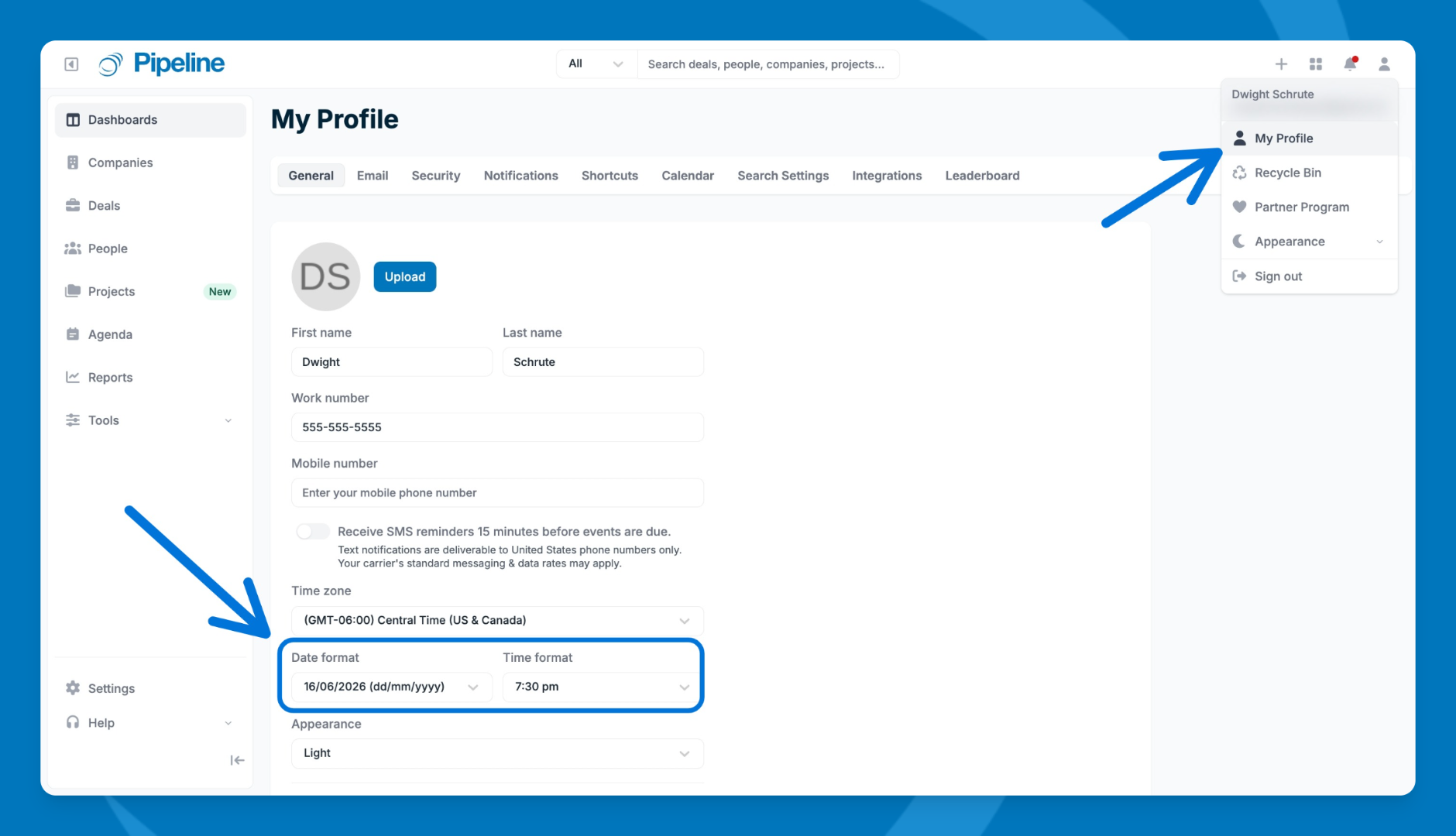
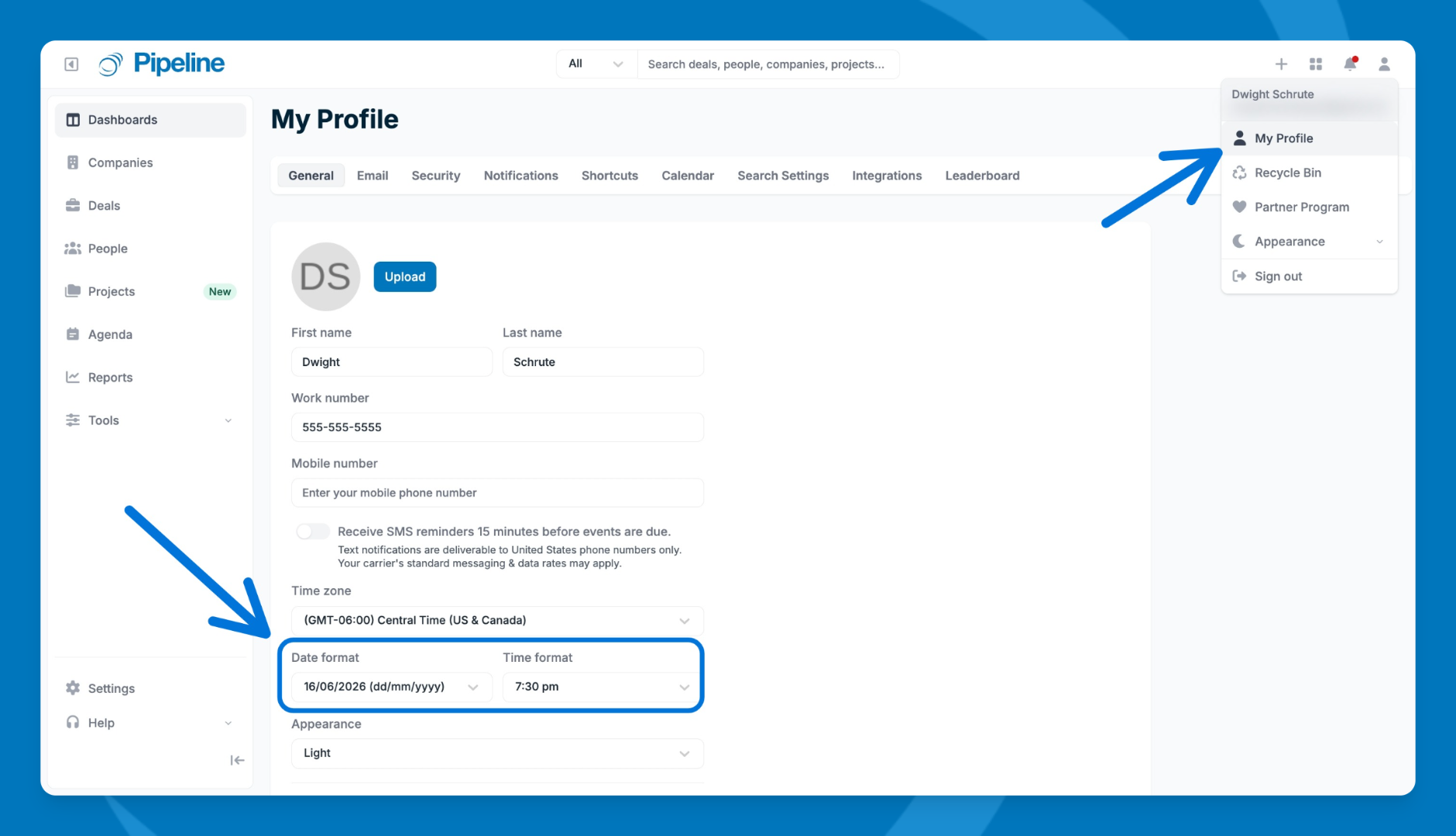
- Click your profile icon in the top-right corner and select My Profile.
- Go to the General tab and scroll down to the Time Zone and Date Format section.
- Under Date Format, choose your preferred format (e.g., MM/DD/YYYY or DD/MM/YYYY).
- Update your Time Zone and Time Format on the same page.
- Click Save changes.
Set Account-Level Date and Time Defaults (Admins only)
Admins can set a default date and time format that applies across the account. Individual users can still override this from their own profile.
Steps:
- Click Settings in the lower-left corner.
- Go to Onboarding > Regional Defaults.
- Set the default Date Format, Time Zone, and Time Format for your account.
- Click Save.
Need help? Contact support at [email protected]