

⚠️ Note: Users cannot be permanently deleted — this ensures their historical data and activity remain intact.
How to Mark a User Inactive
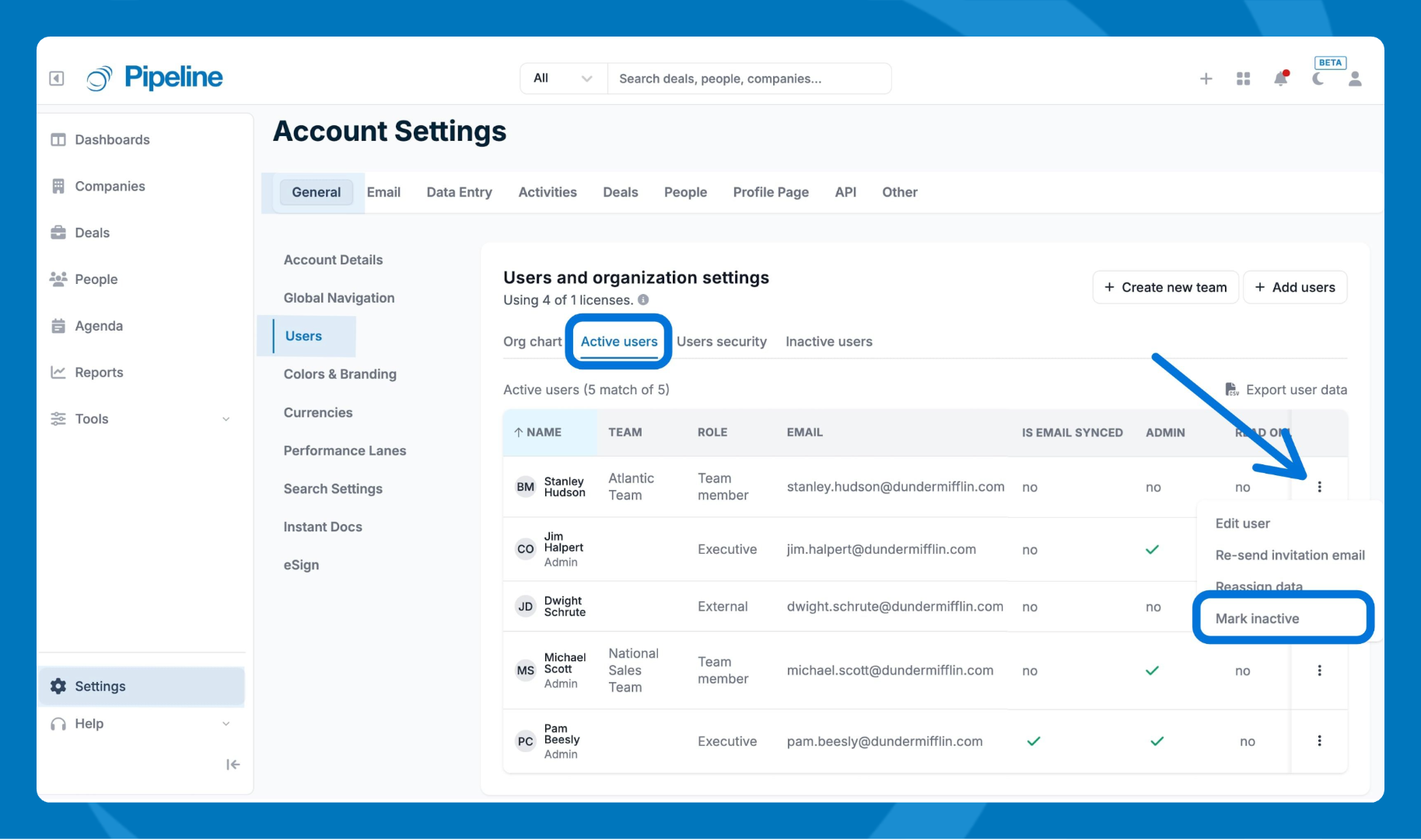
- Go to Settings in the lower-left corner.
- In the General tab, select Users.
- Click Active Users.
- Find the user, then click the three dots > Mark Inactive.
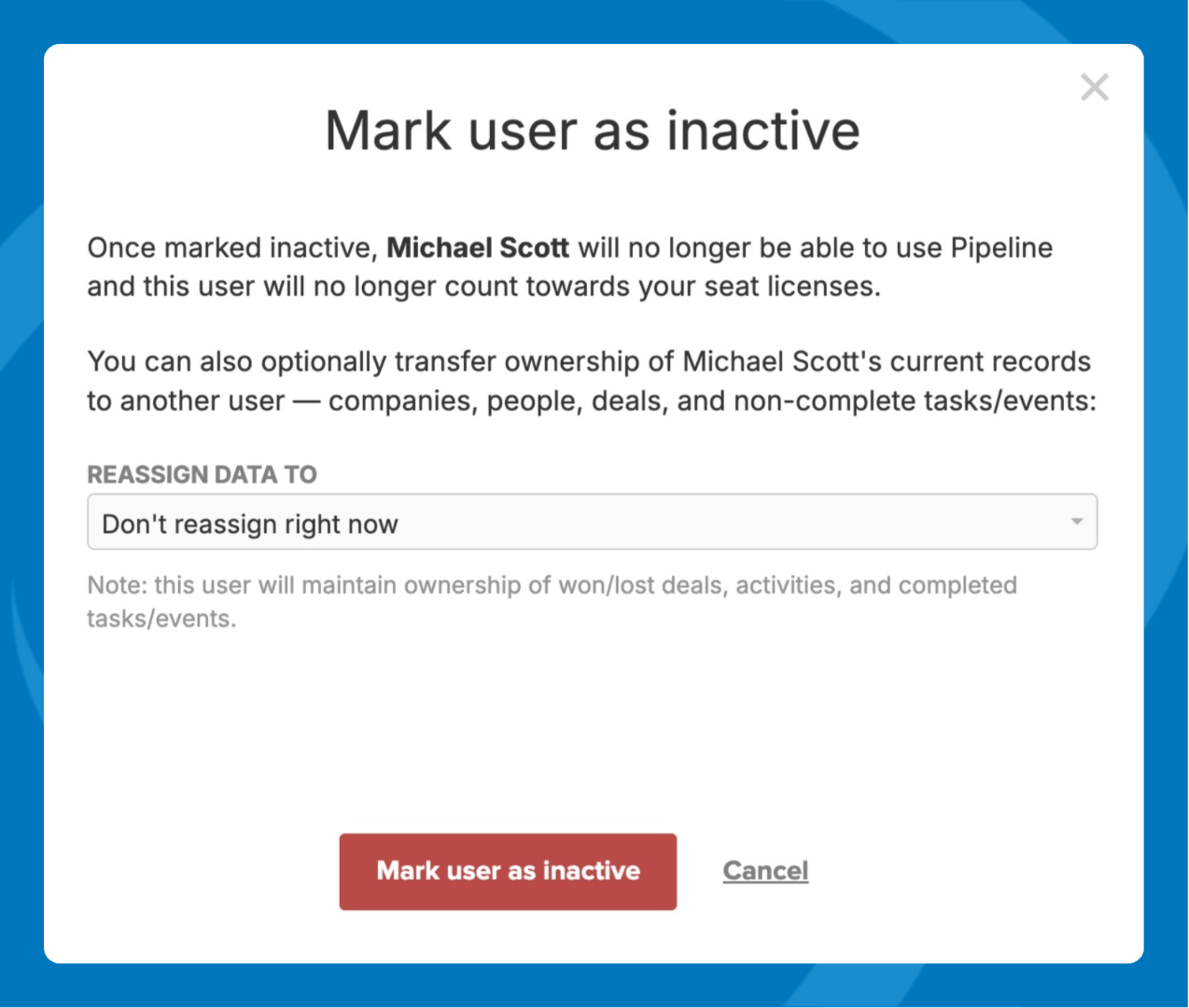
- (Optional) — Reassign data to a different user. You can keep it as is or reassign it later by visiting the Inactive Users tab.
- Follow the prompts to remove their license to avoid being charged at your next renewal.
No data is lost when you deactivate a user. Here's what to expect:
- Reassign now or later — When marking a user inactive, you can reassign their data to another user immediately or later from the Inactive Users section in Settings > Users.
- Completed activities stay put — Past activities, completed tasks, and events remain listed under the deactivated user's name.
- Open items get reassigned — Outstanding tasks, events, deals, and other active records are moved to the reassigned user.
- No reassignment? — Data stays as-is. You can still access it by filtering list views to include inactive users.