

Option 1: View stage changes on the deal profile
- Open the deal you want to review.
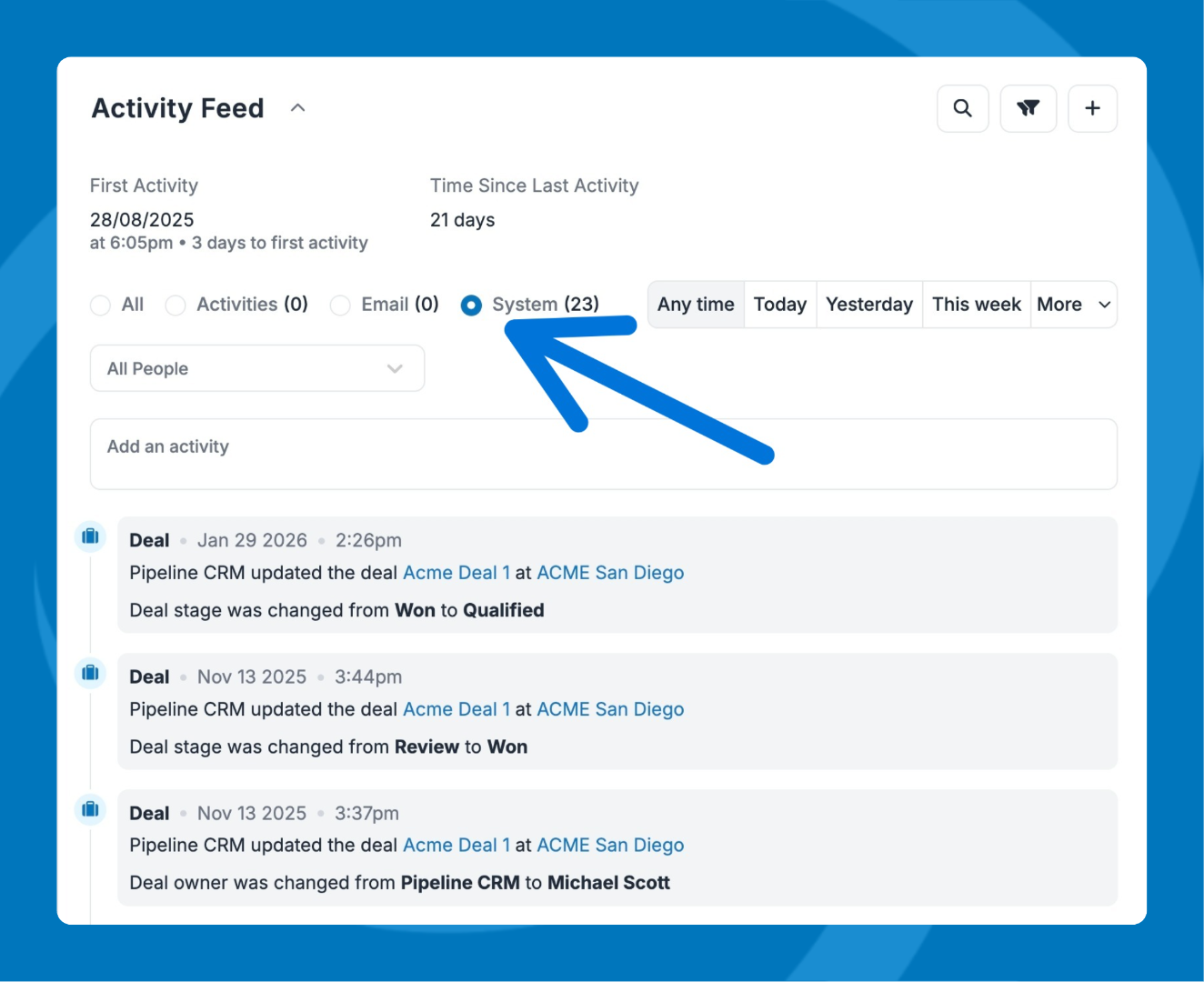
- Go to the Activity Feed tile.
- Filter by System.
- Review the activity list — stage changes will appear here with a timestamp.
Option 2: View stage changes in the Activity Report
- Go to Reports > Activity Report.
- Filter by the deal(s) you want to review.
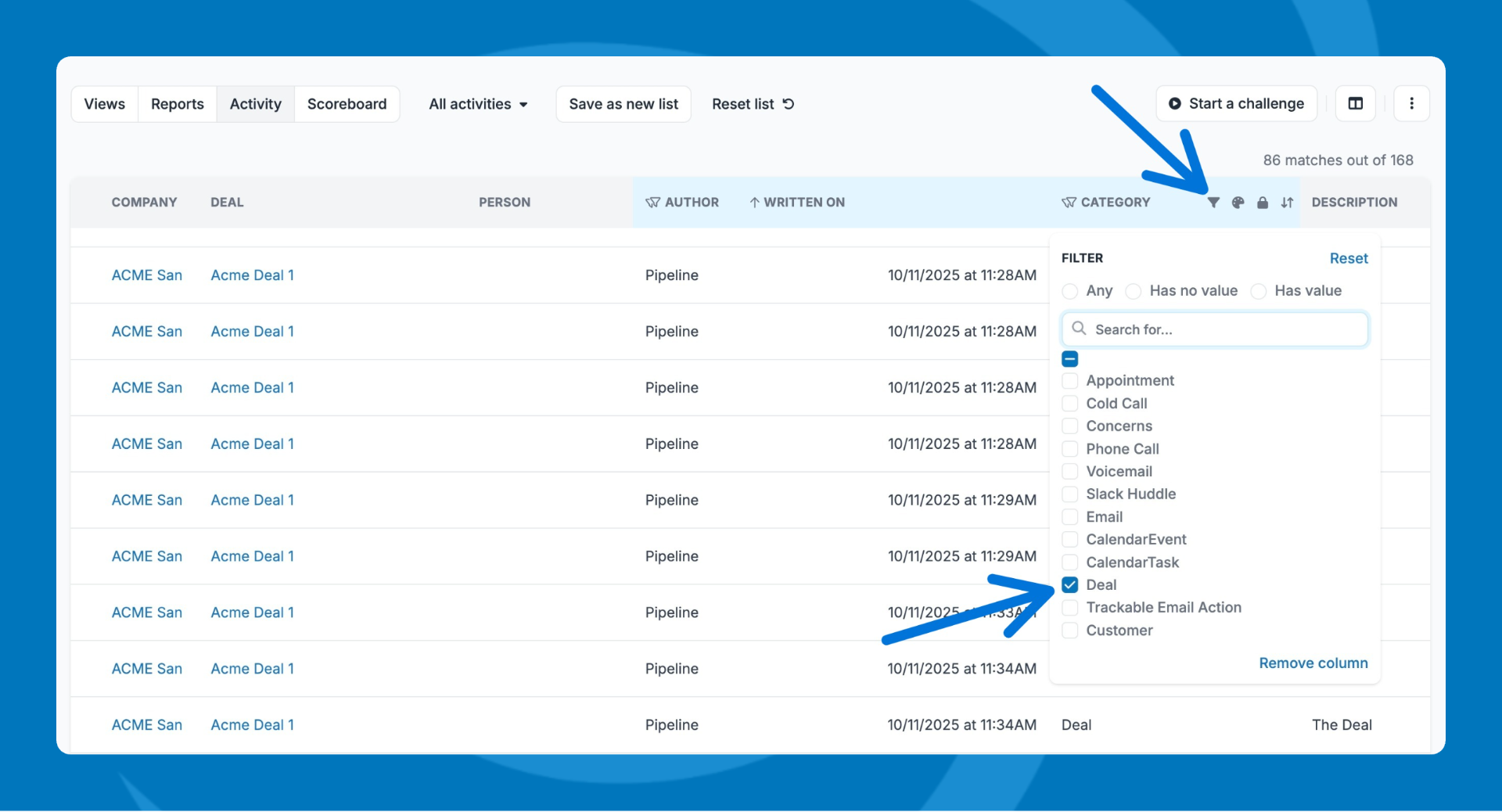
- In the Category column, filter for Deal.
- Check the Description column for the specific stage changes and the Written On column for the date and time of each change.
Need help? Contact support at [email protected].